
When Codex sign-in fails with os error 10013, check whether its local login callback server can start. Inspect the actual callback port and Windows TCP exclusions before changing system services. CLI users may have a device-code alternative. This error alone does not establish an account ban, expired subscription or busy OpenAI service.
failed to start login server: An attempt was made to access a socket in a way forbidden by its access permissions. (os error 10013)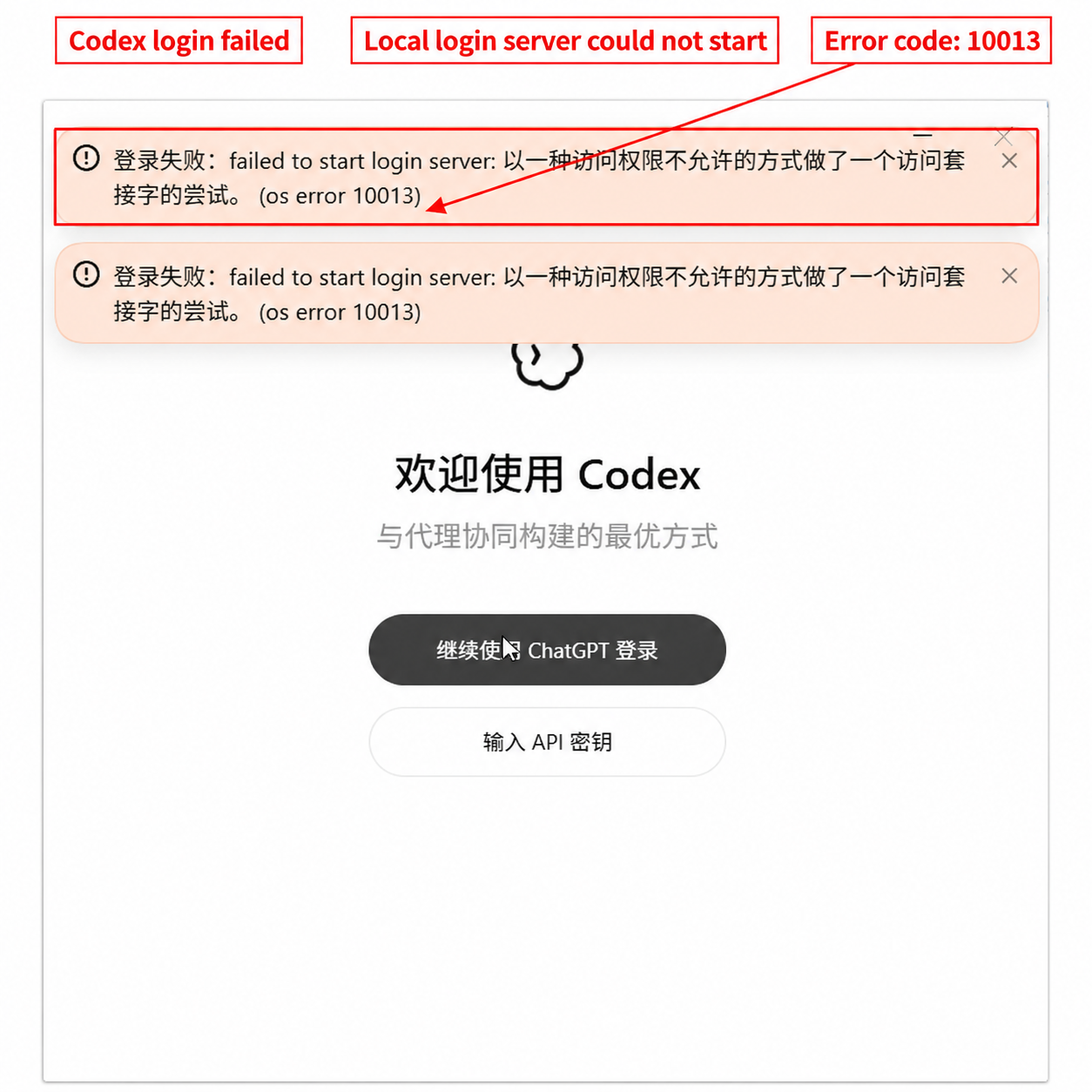
What does Codex OS error 10013 mean?
The message combines a failed login-server startup with Windows Winsock error WSAEACCES: socket access was denied. Microsoft lists exclusive address binding by another application, service or kernel driver as one possible cause. The code alone does not identify the exact restriction. See the Microsoft Winsock error reference.
Codex browser sign-in uses a local callback server. Official documentation describes the default callback as localhost:1455. The examples below check 1455; if your client error or logs identify a different port, check that actual port instead. Do not assume every client version uses identical ports.
Identify the stage at which sign-in fails
| Symptom | Check first | Next step |
|---|---|---|
| The full error appears immediately after selecting sign-in | Local server startup and port binding | Check listeners and excluded port ranges below |
| Browser authorization finishes, but the callback page cannot open | Callback address and the host running Codex | Distinguish local Windows, WSL and remote hosts |
| Token exchange failed, 401 or 403 | The actual authentication, network or permission message | Diagnose that specific error separately |
| Sign-in completes, but tasks keep reconnecting | Task connection, network path and session | Use the Codex reconnecting troubleshooting guide |
Record your desktop app, IDE extension or CLI version and Windows version. In remote development, inspect the environment actually running the Codex login process. For installation channels, see the Codex download and installation guide.
Step 1: Check the callback port and Windows TCP exclusions
Run these read-only checks in Windows PowerShell. The first command lists listeners on 1455. The remaining commands show IPv4 and IPv6 TCP exclusions. A permission error is not evidence that there are no listeners.
Get-NetTCPConnection -State Listen -LocalPort 1455 -ErrorAction SilentlyContinue |
    Select-Object LocalAddress,LocalPort,OwningProcess

netsh interface ipv4 show excludedportrange protocol=tcp
netsh interface ipv6 show excludedportrange protocol=tcp- If a listener is returned, record
OwningProcessand identify it withGet-Process -Id <actualPID>. Do not terminate an unidentified process. - No returned listener, with no query error, only means no listener was found at that moment. It does not prove the port can be bound.
- Compare the actual callback port against each listed start-to-end range, including both boundaries. Check IPv4 and IPv6 separately.
| Result | What it establishes | Next step |
|---|---|---|
| A listener exists | A process is listening; its identity still matters | Normally close a confirmed idle duplicate login instance, or ask an administrator to handle the actual conflict |
| No listener, but the port is excluded | A port-exclusion restriction is present | Save the output; prefer an available alternative login, or have an administrator inspect virtual networking and WinNAT |
| No listener and no matching exclusion | These checks have not located the cause | Inspect client logs and security policy; do not declare the port usable |
| Only WSL or a remote project fails | Browser and callback may be in different environments | Check where the process runs; evaluate device-code login for CLI |
Step 2: Choose a route for the affected client
Desktop app: When should you investigate WinNAT?
If the actual callback port is excluded and your setup uses Windows NAT-dependent virtual networking, an administrator can evaluate a controlled stop/start comparison. This is a conditional diagnostic action, not an OpenAI-guaranteed repair. The supplied screenshots do not establish WinNAT as the cause on your machine.
Save work and finish network-dependent tasks first. Stopping WinNAT may interrupt networking for dependent containers or virtual machines. On managed devices, ask your administrator. When appropriate, use an Administrator PowerShell:
net stop winnat
net start winnat
The commands stop and restore the service. Confirm that the second command reports successful startup before retrying Codex. Check the excluded ranges again for comparison. If stopping is refused, do not force dependent services to stop. If restoration fails, resolve that service issue first.
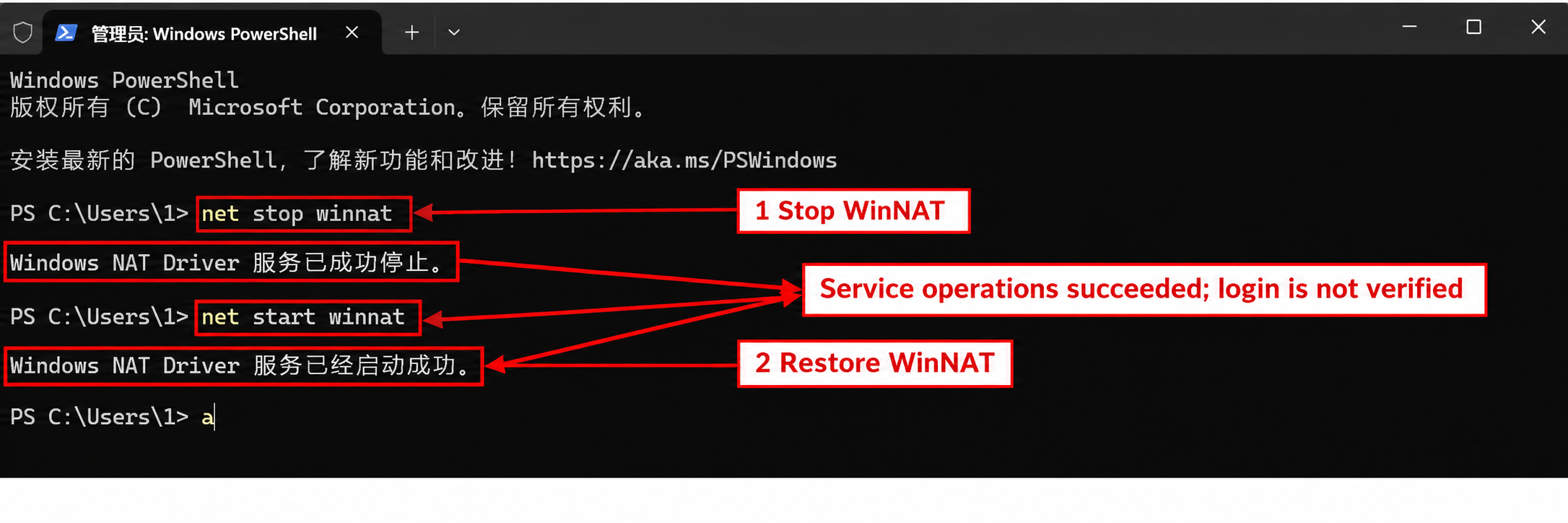
If the error remains, retain before-and-after results and investigate the remaining restriction. Do not repeatedly restart the service. Deleting exclusions, resetting the whole network, changing global dynamic port ranges or disabling the firewall should not be the default next action.
CLI: Use device-code login when available
For Codex CLI, OpenAI recommends evaluating device-code authentication when local networking blocks the localhost callback. Personal accounts need device-code login enabled in ChatGPT security settings; workspace accounts may require administrator permission. Check supported options before starting:
codex login --help
codex login --device-auth
Open the address printed by your terminal, sign in to your own account and enter the one-time code. Return to the terminal for the result. Do not share that code. If the option is missing, update the standalone CLI through its installation channel; this does not update the desktop application. Prerequisites are in the OpenAI authentication documentation.
This route directly authenticates the CLI. Even where tools share cached credentials, CLI success does not guarantee that the desktop app or IDE extension has recovered. Verify the originally affected client separately.
Step 3: Verify that Codex sign-in actually works
| Client | Check | Success criterion |
|---|---|---|
| Desktop app | Retry its own sign-in and complete authorization | Reach the normal workspace and receive one real response in a new task |
| CLI | Run codex login status, then codex | Confirm the expected authentication mode and receive a response to a new task |
| IDE extension | Check its own authentication and open a new conversation | The affected extension works; CLI status alone is insufficient |
Use a bounded task: “Reply only OK. Do not call tools or modify files.” One response verifies that request, not permanent network reliability. codex login status reports credential status rather than end-to-end connectivity. See the official command reference.
What to include if you still need help
- Client and Windows versions; local, WSL or remote environment.
- The full error and its stage: before browser authorization or after callback.
- Actual callback port, listener results and matching IPv4/IPv6 exclusions.
- Any virtual machines, containers or managed security software actually in use.
- Actions tried and observed changes, including whether WinNAT was restored and whether CLI device-code login is available.
Share redacted diagnostics only. Never attach auth.json, API keys, one-time codes or a complete callback URL containing authorization parameters. Remove account paths and tokens from logs before sharing.
Frequently asked questions
Does error 10013 mean my account is banned?
No such conclusion follows from this error alone. It is a Windows socket-permission error. Check local server binding and system restrictions first; investigate an account suspension separately only if an explicit account message appears.
Why does login fail when nothing is listening on the port?
Listeners and excluded port ranges are different checks. A port with no listener may still be excluded or restricted by policy.
Will running Codex as administrator fix it?
It is not guaranteed. Elevation does not remove every exclusion or policy restriction. Identify the actual restriction; use an administrator terminal only for operations that require it.
Does restarting WinNAT always work?
No. A successful service restart is not proof of a repaired login. Compare port results and verify sign-in and one real request in the affected client.
Will device-code login fix the desktop app?
The command authenticates the CLI. Desktop credential reuse or alternative sign-in depends on the actual client. Verify it separately.
Must I reinstall Codex, change accounts or buy an API key?
These are not default repairs for error 10013. Reinstallation and account changes do not automatically remove Windows port restrictions. API-key authentication is a separate authentication and billing route, not a required purchase to repair local socket access.