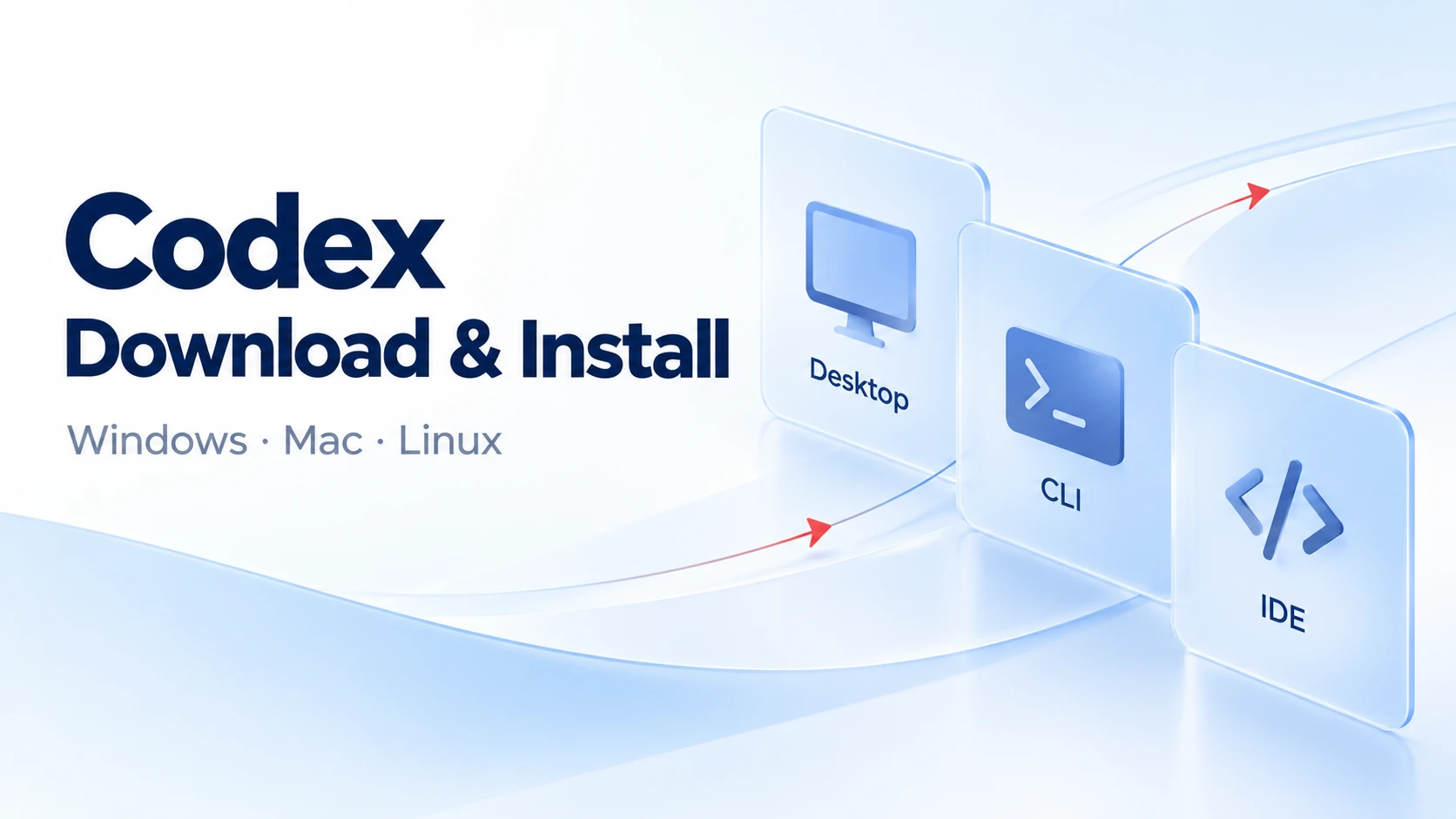
To download and install Codex, first choose the desktop app, Codex CLI, or an IDE integration. Then install the appropriate version, sign in, and verify it with a small project task. A downloaded installer, a successful sign-in and available usage are separate checkpoints.
The current official quickstart directs desktop users to install the ChatGPT desktop app and select Codex inside it. Seeing ChatGPT on that official download route does not mean you have chosen the wrong product.
Choose desktop, CLI or an IDE integration
| Route | Best fit | Verify after installation |
|---|---|---|
| Desktop app | Graphical project and task management | Sign in, select Codex and open a project |
| Codex CLI | Terminal and scripting workflows | Check the version and launch codex in a project |
| IDE integration | Working beside the code you are editing | Open the Codex panel and start a task |
Start with one route and verify it before adding another. Installing the desktop app does not require a preliminary npm CLI installation, and installing the CLI does not install the desktop interface.
Find the official download and check compatibility
Follow the official desktop guide rather than trusting an installer filename or an advertisement. Check the supported operating system, processor architecture and package format before downloading.
- Choose desktop, CLI or IDE.
- Check the current platform requirements.
- Select the matching official package or installation method.
- If installation fails, keep the complete error message for diagnosis.
Install Codex on Windows
The Windows desktop application supports a native environment. WSL is an alternative configuration, not a universal prerequisite.
- Follow the desktop download link in the official Windows guide.
- Complete installation and launch the app from Start.
- Sign in and select Codex from the product menu.
- Open a practice project folder.
- Ask Codex to explain its directory structure without changing files.
The Windows guide also provides this desktop installation command:
winget install --id 9PLM9XGG6VKS -s msstoreFor the terminal tool, use the separate CLI route below. Choose WSL when your project or preferred toolchain needs that environment.
Install Codex on Mac
- Use the macOS option in the official desktop download route and review compatibility.
- Open the downloaded installer and follow its instructions. If it asks you to move the application to Applications, complete that step.
- Launch the installed app and sign in.
- Select Codex and open your project.
- Try a read-only task to verify project access.
Downloading a file alone does not confirm installation. The Homebrew command later in this article installs Codex CLI; it should not be confused with the graphical desktop application.
Install Codex on Linux
The Linux desktop application is currently a preview. Its documented desktop distributions are Ubuntu 24.04 and 26.04 LTS, Debian 13, Fedora 43 and 44, and current fully updated Arch Linux releases.
Check your processor architecture:
uname -m| System or output | Selection |
|---|---|
| x86_64 | x64 package |
| aarch64 or arm64 | ARM64 package |
| Ubuntu or Debian | .deb |
| Fedora | .rpm |
| Arch Linux | Official installation script |
After downloading the matching Ubuntu or Debian package, open a terminal in its directory. For the official example x64 filename, run:
sudo apt install ./chatgpt_amd64.debUse chatgpt_arm64.deb for ARM64. Fedora uses its RPM installation route. Read the Arch instructions before running its script because that installation includes a full system upgrade. Launch ChatGPT after installation, sign in and select Codex. See the official Linux guide for commands, supported distributions and preview limitations.
Install, update and verify Codex CLI
Choose one method from the official Codex CLI guide, then maintain the installation through that route.
macOS and Linux standalone installer
curl -fsSL https://chatgpt.com/codex/install.sh | shThis downloads and runs the official installer. Confirm the address against the official guide. The current standalone update procedure uses the same command.
Windows PowerShell installer
Start from a new PowerShell window:
powershell -ExecutionPolicy ByPass -c "irm https://chatgpt.com/codex/install.ps1 | iex"The execution-policy argument applies to that PowerShell invocation. Do not interpret it as an instruction to permanently disable device policies. On managed devices, use an installation route allowed by your administrator.
npm or Homebrew
If you already have the required Node.js and npm environment:
npm install -g @openai/codexAlternatively, with Homebrew:
brew install --cask codexUpdate an npm installation by running its install command again. For Homebrew, use brew upgrade --cask codex. Node.js should not be presented as a prerequisite for every standalone or desktop route.
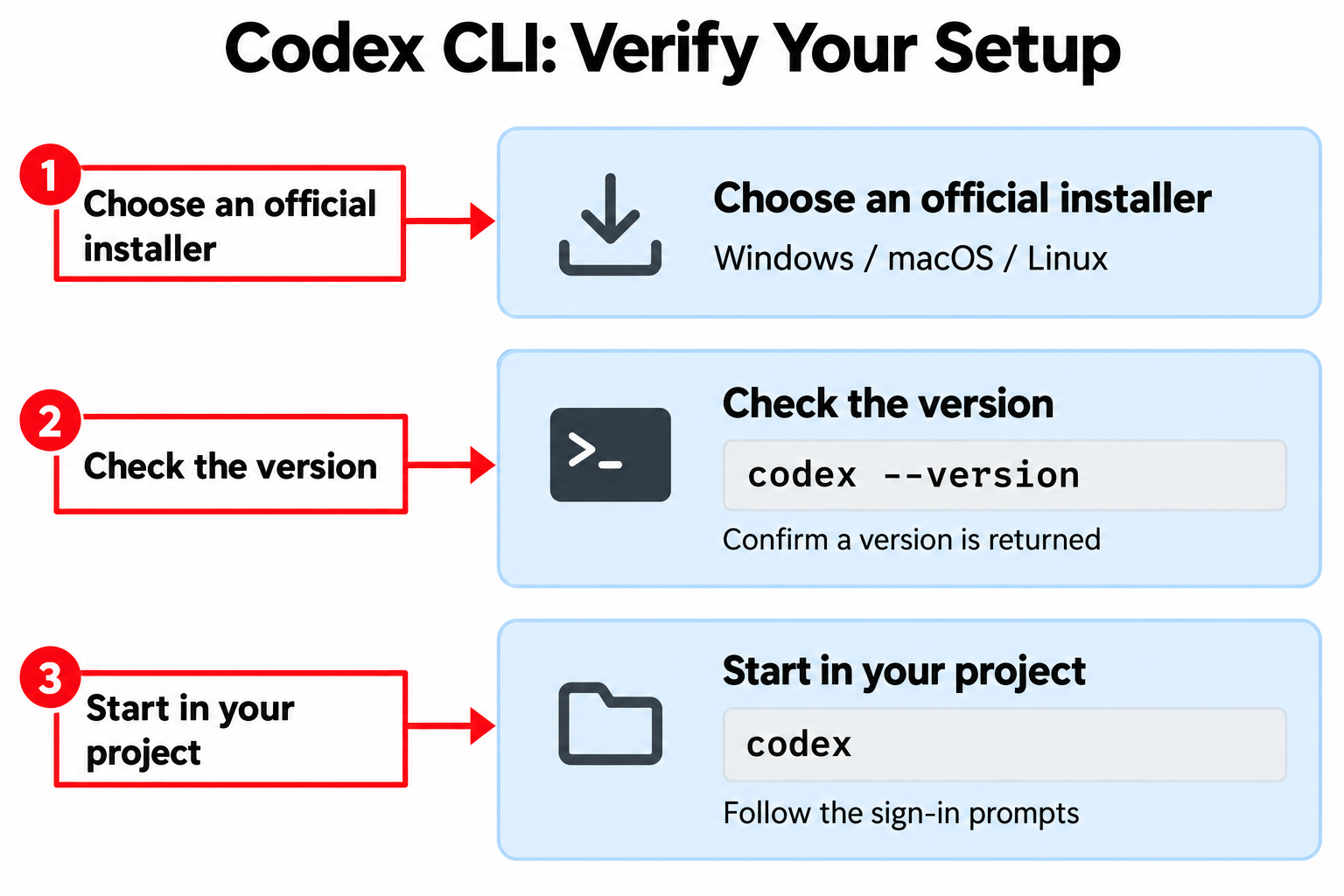
Check the version and launch
Open a fresh terminal and run:
codex --versionA version response confirms that the terminal can resolve the executable. Change to a project directory, then run:
codexFollow the sign-in prompts and send your first task. The codex coding-agent command and the openai API command are different tools.
Install Codex in VS Code, Cursor or another IDE
- Select your editor in the official IDE guide.
- Follow its extension link and verify the publisher before installation.
- In VS Code, Cursor or Windsurf, select the Codex icon. If necessary, use the Command Palette command
Codex: Open Codex Sidebar. - Sign in, open a project and ask Codex to explain the current file.
Xcode and JetBrains provide their own integrations. Use the instructions for the actual editor rather than applying VS Code steps to every IDE. An installed extension still needs a working panel, authentication and correct project context.
Sign in and verify your first task
The desktop route asks you to sign in and select Codex. On its first launch, the CLI offers Sign in with ChatGPT or another available method. Review the conditions of your chosen authentication route; an API key is not a universal prerequisite.
Start with a bounded request:
Read this project's directory structure and explain the main files. Do not change files or install dependencies yet.
Check that the answer concerns the selected project and refers to real files. For editing tasks, specify the permitted scope and how the result should be verified. Installation, authentication and usage entitlement are separate checks; a successful download does not establish a particular subscription or allowance.
Installation troubleshooting and FAQ
| Symptom | Check first | Next step |
|---|---|---|
| Installer will not open | Source, complete download, OS and architecture | Select a matching official package |
| codex command not found | Installation completion, shell environment and PATH | Open a fresh terminal and check the installed executable location |
| PowerShell script error | Exact message and device policy | Follow Windows troubleshooting; avoid blanket policy changes |
| App opens but sign-in fails | Authentication method and displayed error | Diagnose authentication before reinstalling |
| Repeated reconnecting | Error, account, network and service state | Use the reconnecting troubleshooting guide |
For Reconnecting or repeated 1/5–5/5 attempts, see our Codex reconnecting troubleshooting guide.
Is WSL required on Windows?
No. The desktop application supports a native Windows environment. WSL is an alternative selected for your project or tools.
Is Node.js always required?
No. The npm route needs its corresponding environment. Follow the independent requirements for standalone installers and the desktop application.
Do I need an API key?
Not for every route. The official workflow supports ChatGPT sign-in. Other authentication methods have their own availability and feature conditions.
Must I buy a third-party account to download Codex?
No purchase of a third-party account is a prerequisite in these official installation steps. Verify your own account's current benefits separately.
How do I know installation succeeded?
Check that the desktop app opens, the CLI returns a version and launches, or the IDE panel opens. Then sign in and complete a small project task to verify the wider workflow.