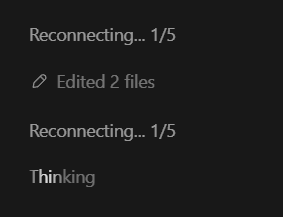
If Codex is stuck reconnecting at 1/5–5/5, record the full error, then check whether a new task works with the same account. Reconnecting 1/5 or 5/5 alone cannot tell you whether the problem is your network, account or an upstream service, and does not establish that you need to pay for more access.
Updated October 26, 2026. Covers the desktop app, VS Code/Cursor extension and CLI. Exact controls depend on your version.
Find the next check from the error
| What you see | Check first | Next step |
|---|---|---|
| Repeated 1/5 to 5/5 reconnects | The complete error after retries end | Save it and compare with one new task |
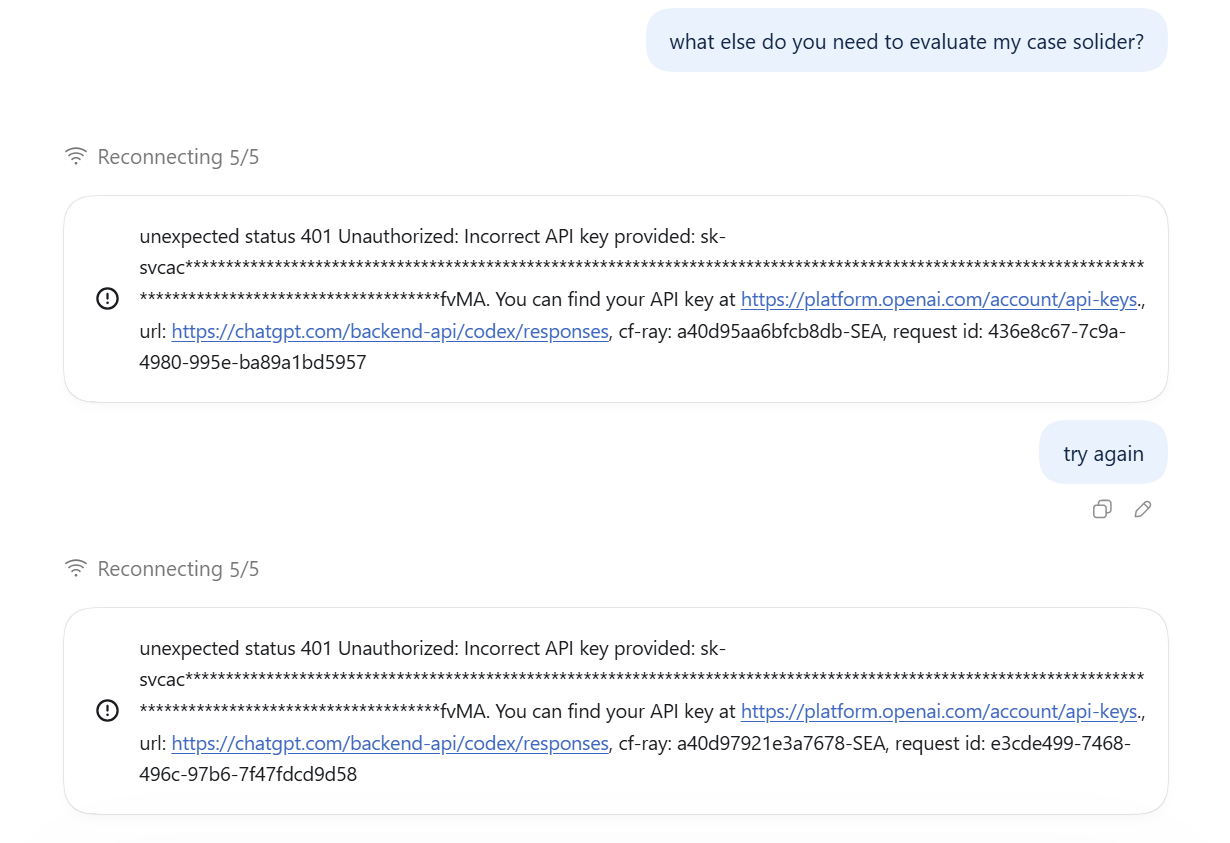
| 401, Unauthorized or a sign-in prompt | ChatGPT sign-in session, or API-key/gateway authentication | For ChatGPT, follow the sign-in prompt; for API/gateway access, check the key, endpoint and authentication forwarding |
| 403 or a permission message | The stated access, location or workspace restriction | Address that restriction; do not assume a ban |
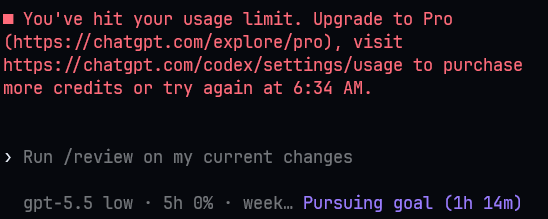
| 429, rate-limit or usage message | Request rate, ChatGPT allowance, or API balance/spend limits | Wait as instructed for rate limits; check ChatGPT resets, or API balance and organization/project spend limits for exhausted API quota |
| 5xx or server processing failure | OpenAI Status and the actual request endpoint | Retry later; check your gateway too if applicable |
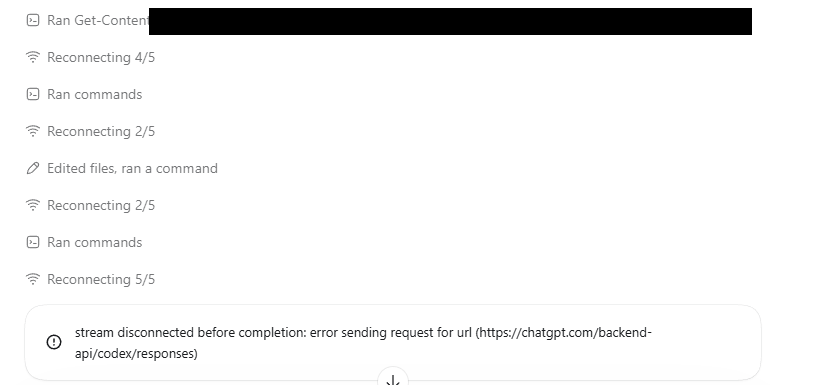
| timeout or stream disconnected before completion | Network, proxy, certificates and task-specific behavior | Follow the stream and network checks |
Use the HTTP rows only when the actual error includes that status. See OpenAI’s error-code guide.
Read error.code in the full message first. API credit, spend or usage limits require addressing the relevant limit; repeated retries will not restore access. For a custom gateway, check its original error.
Four steps to troubleshoot Codex reconnecting
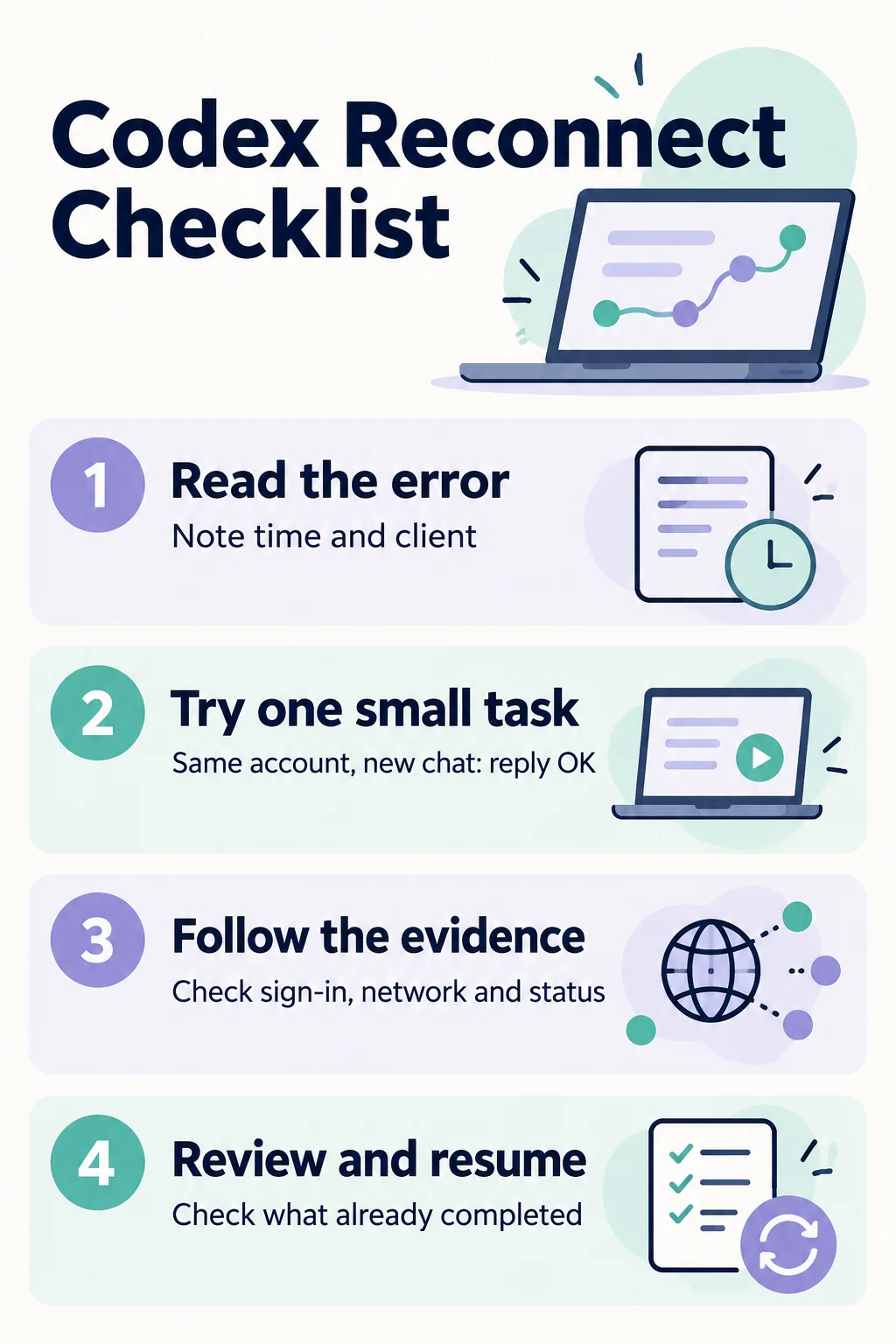
1. Save the error and check for a pending action
Record the client, version, time and final error. Look for a pending approval, sign-in or question. Thinking, a running terminal command and connection retries are different states; identify the current state before interrupting.
2. Test two turns in the same new chat
Save any unsent draft, open a new task and enter:
Reply only OK. Do not use tools or modify files.
After the reply, send “For this turn, reply only OK2. Do not use tools or modify files” in the same new chat. Test two turns to catch cases where the first message works but the next one stalls.
- Both new-chat turns work, original fails: inspect the original task’s state, last completed step and output volume.
- First turn works, second stalls: record a follow-up-turn failure and compare another client; do not assume the original task is damaged.
- All new tasks fail: check sign-in, the network path and service status.
- Only one client fails: record desktop, extension and CLI versions separately.
- Only remote projects fail: check whether the host slept, lost its network or closed the app.
Receiving both requested short replies confirms only that those two requests worked. Check the original task again before treating it as recovered.
3. Follow the client and error branch
Desktop app keeps reconnecting: reopen and test two turns
- Confirm the account and personal/team workspace. Save your draft and completed work.
- Wait for other active tasks to finish, fully quit and reopen the app, then check for updates through its original installation channel. Updating a standalone CLI does not update the desktop app.
- Send two short prompts in the same new chat. If both work, return to the original task and check whether it can continue. If only the desktop app fails, record its version and full error.
Codex reconnecting in VS Code or Cursor: check the extension
- Save your edits and confirm the identity signed in to the extension.
- Check the Codex extension version and run
Developer: Reload Windowfrom the command palette. - Open a new chat in the extension and test two turns. If CLI works but the extension fails, include both the editor and extension versions in your report.
CLI reconnect errors: check version and authentication mode
Run these read-only checks in the terminal that runs Codex; for remote work, check the corresponding host:
codex --version
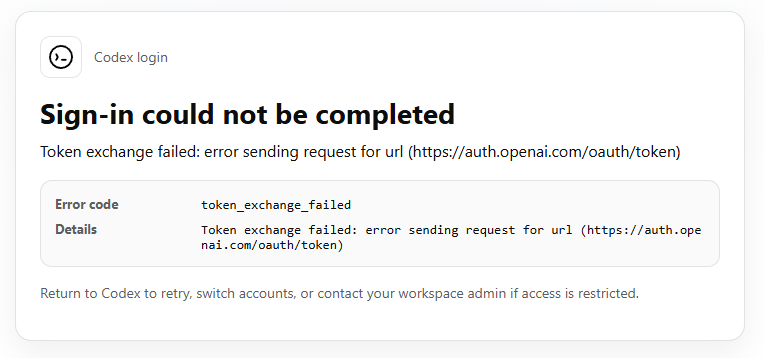
codex login status
The second command reports authentication mode, not end-to-end connectivity. For ChatGPT sign-in, follow the sign-in prompt. For API-key access, check the selected provider, endpoint and credentials without sharing keys in chat or logs. On versions supporting it, codex doctor provides local diagnostics; see the official command reference. Then test two turns in a new chat.
Stream disconnected before completion or network timeout
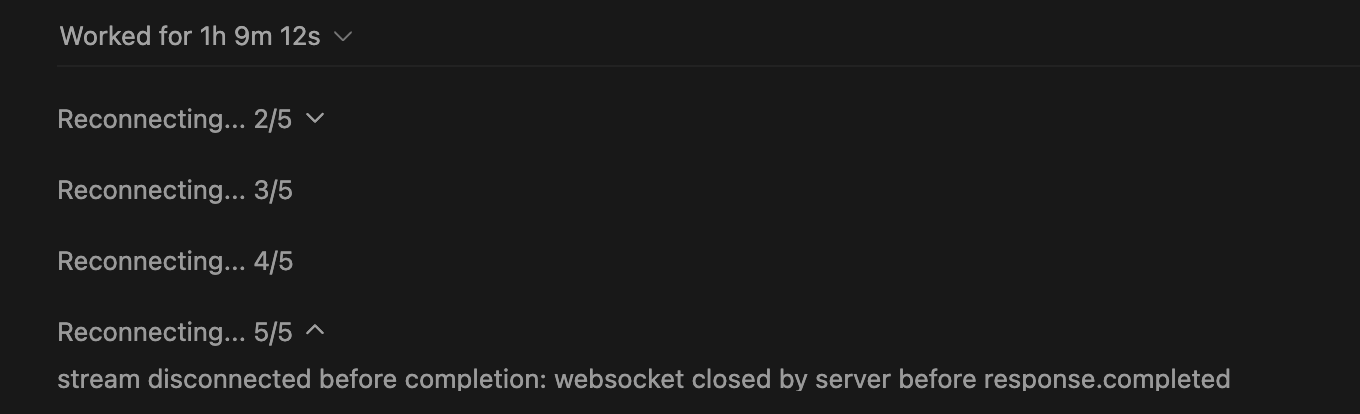
This means the response stream ended before completion; the message alone does not establish the cause. Save the full following error, then choose a branch using the status code and scope of the failure:
- Check the actual proxy/VPN address and port. Where network policy permits, change one network condition at a time and repeat the two-turn test.
- A normal webpage loading does not establish a stable response stream or WebSocket. Follow your administrator’s certificate configuration on corporate networks.
- If only terminal tools cannot access the network, check tool network permissions. This differs from a disconnected chat; granting full access is not a general fix.
- If only remote projects fail, check whether the host slept, lost network access or closed the app.
4. Review completed work before resuming
A failed reconnect does not roll back every earlier action. Inspect file changes, terminal output and task records. In a Git project, start with:
git status --short
git diff --stat
Then ask Codex to preserve completed work and continue only unfinished steps. These commands help inspect local Git changes; verify emails, deployments and other external actions in the relevant service.
User discussions: accounts and busy periods
Account state: compare clients with the same account
In a public report affecting a particular Windows desktop version, a first message worked while later messages stalled; the same account could still work through CLI or VS Code. Signing in again temporarily helped one reporter, with mixed follow-up results. See the user discussion in the Codex project.
Personal reports are clues to check session and client state, not proof of an account ban or a universal account-switching fix. Confirm the account, personal/team workspace and allowance. If you switched accounts, verify the active identity. Do not copy another user’s credential-file deletion steps.
Busy periods: compare times without assuming a global schedule
In a June 19, 2026 comment, one user observed more reconnects around 14:00–15:00 CEST (UTC+2), equivalent to 20:00–21:00 at UTC+8. This Reconnecting Issues discussion is a personal observation, not an official peak-hours schedule or a finding that applies to every date, location or account.
If you notice a time pattern, compare the same short prompt using the same account and network at two times. Record time, model and error. This helps investigation but does not prove congestion. The service page’s aggregate status does not guarantee that every individual request works.
What to include when it still fails
- Operating system and app/extension/CLI versions;
- Time and timezone, full error, request ID or session ID;
- Remote-host, corporate-network or custom-gateway use;
- Same-account comparisons across new tasks, clients and times.
In the Windows/macOS desktop app, type / in the composer and select an available feedback item, or use /feedback. Choose whether to attach the chat when prompted. On macOS only, app logs are normally under ~/Library/Logs/com.openai.codex/YYYY/MM/DD. Remove credentials, account details and sensitive project data before sharing. See official troubleshooting guidance for logs and feedback.
Frequently asked questions
Does Reconnecting 5/5 mean the task is 100% complete?
No. Check whether the connection recovers or the task explicitly fails, and read the full error rather than the counter alone.
Does reconnecting mean my plan expired? Are paid accounts immune?
No such conclusion follows from the prompt. Check your sign-in, plan access, usage limits and full error; paid access does not eliminate client or connection failures. Follow billing or usage guidance only when the full error explicitly identifies that limit.
Should I reinstall immediately or raise the retry count?
Compare a small task and retain the error first. Reinstalling cannot fix every service-side or account-state problem; more retries do not repair invalid credentials or an incorrect service address.