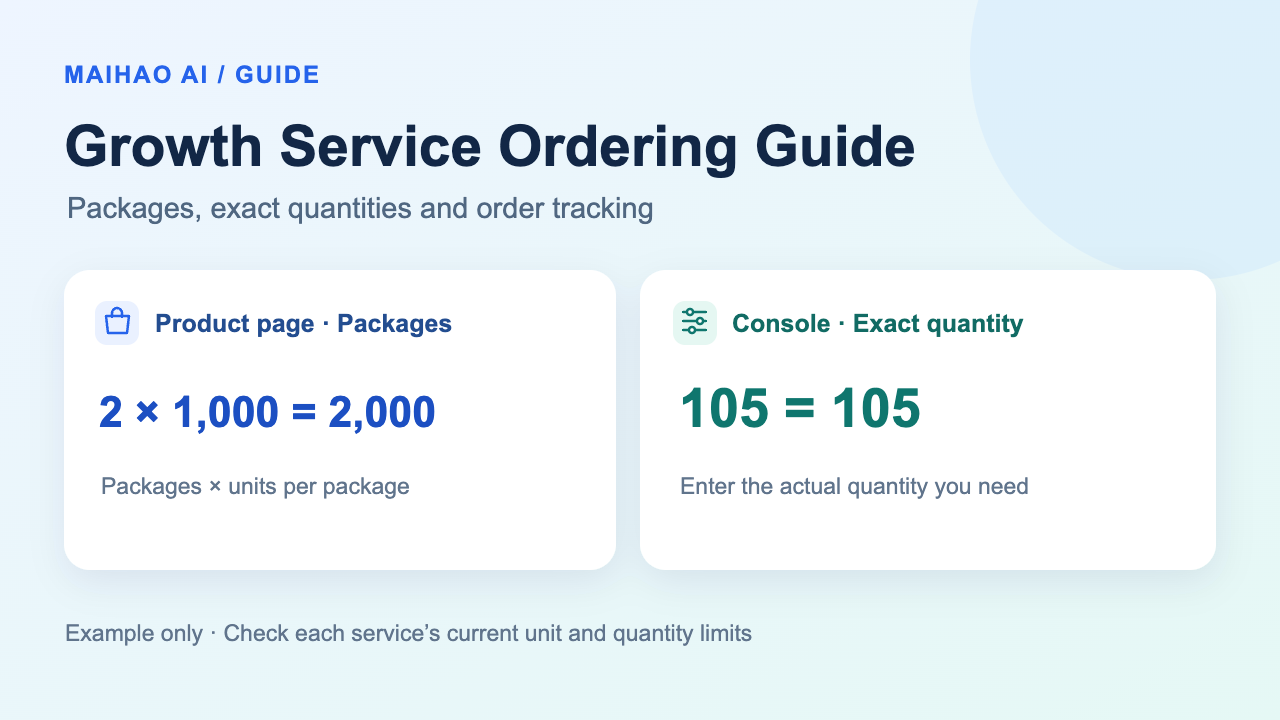
Growth services offer two ways to order: buy packages on a product page, or enter an exact service quantity in the console. Check the input unit before entering a quantity and target URL, then review the total service quantity and checkout amount before paying.
This guide covers the general purchase and order-tracking process. Package size, minimum and maximum quantities, required target format, service scope and after-sales terms depend on the selected product and the current order screen.
Growth service packages vs. exact-quantity console orders
Package count and actual service quantity measure different things. Package count tells you how many standard packages you are buying. Actual quantity tells you how many views, likes or other service units the order requests. Units vary between services.
| Comparison | Product page: packages | Console: exact quantity |
|---|---|---|
| What you enter | The number of packages to buy | The actual service quantity you need |
| Quantity calculation | Package count × units included per package | The actual quantity entered, without applying the package multiplier again |
| What to check first | Selected specification, units per package and package-count limits | The selected service's unit, minimum, maximum and quantity increment |
| Pricing | Checkout uses the selected package and package count | A quote uses the selected service and actual quantity |
| Availability | Buy the package specifications currently offered on the product page | Only services currently available for exact-quantity ordering in the console |
For either option, review the confirmed amount before payment. A product offering fixed packages does not necessarily support arbitrary quantities or have an equivalent console service.
Example: how do 1,000-view packages differ from an order for 105 views?
Consider Telegram Auto Post Views | Last 5 Posts | Monthly Package. Its current package contains 1,000 view service units. The following numbers apply only to this example product, not to every growth service:
| Action | Service quantity for this example |
|---|---|
| Enter 1 package on the product page | 1 × 1,000 = 1,000 views |
| Enter 2 packages on the product page | 2 × 1,000 = 2,000 views |
| Enter 105 views in the console | 105 views, not 105,000 views |
| Current product-page limits | 1–300 packages, in whole packages |
| Current console limits | 100–300,000 views, in increments of 1 view |
If you need only 105 views, open this example service in the console, confirm the current limits and enter 105. Do not accidentally enter 105 packages on the product page: for this example, that would mean 105,000 views.
“Last 5 Posts” and “Monthly Package” describe the service's scope. They are separate from package count and view units. They do not, by themselves, establish an allocation per post, a daily quantity or a fixed completion time. Check the product's specific terms for how the service applies.
How to place a growth service order
Option 1: buy packages on a product page
Choose the correct product and specification. Browse the growth service catalog, choose the platform and service, then check the target type, package size and eligibility conditions.
Enter the package count and required details. Provide the target URL, username or other information requested on the page. Confirm that the quantity field is asking for packages, not actual service units.
Review before submitting. Check the specification, package count, total service quantity and target details, then add to cart or buy now. If the cart says a specification has changed, select and confirm the current specification again.
Pay and keep the order number. Follow the checkout instructions, check the payable amount and any payment-channel fees, and open the order details to track its status.
Option 2: enter an exact quantity in the console
Select the platform and specific service. Open the growth service console and use the category and search controls to choose a service. Even when following a product-page link, confirm the service currently selected.
Enter the actual quantity and target details. Read the unit, minimum, maximum and quantity increment. Enter the number of actual service units you need; do not multiply it by 1,000 yourself.
Check the mode and additional options. Review a single target first. If bulk ordering or scheduled batches are offered, check each target, quantity and execution rule. Keep the quantity per run separate from the overall total.
Review the quote and pay. Check the service, target, actual quantity and final payable amount before submitting. If the page reports an invalid quantity or an unavailable service, resolve that message before trying again.
Which service details should you check before paying?
The correct target: check that the platform, account, channel or post matches the selected service. Provide an accessible target in the required format; a profile URL and a post URL are not interchangeable.
The correct unit: distinguish views, likes, follows, post counts and package counts. Check any time period, location, audience or multiple-target conditions separately.
A valid quantity: check the current minimum, maximum and allowed increments. Do not reuse another product's quantity limits.
Suitable service terms: rely only on the start time, processing speed, refill and cancellation capabilities explicitly shown for this service. An unstated benefit is not included by default.
The confirmed amount: review the currency, discounts and any payment-channel charges on the current checkout page. Do not rely on an old price screenshot.
After ordering: using the service and checking results
Keep the target eligible for the service. During processing, keep it accessible as required by the selected service. Avoid deleting the target or changing its username or privacy settings without checking the service instructions. If a change is necessary, check those instructions or ask support about its effect first.
Check results against the order. Compare the selected service, target and ordered service quantity with the processing results. Check payment status and service progress separately: start time is not completion time. Keep the order number, target URL and screenshots if a problem needs support review.
Check special plans individually. For subscriptions, fixed packages or scheduled batches, confirm the period, scope, quantity per run and total on the current product and order screens. Do not apply this guide's example to those plans automatically.
How to track a growth service order after payment
Signed-in customers can open My Orders, find the order number and view its details. The console's My Orders tab also lists growth service orders. If the product checkout allows guest purchases, use Guest Order Lookup with the information provided when ordering.
If a payment status has not updated, first compare the payment record with the current order and ask this site's support to check if necessary. Do not pay or place the same order repeatedly while trying to resolve one problem.
Growth service ordering FAQ
How much is 1 Package? Does every service use 1,000 units?
1 Package means one of the selected packages. Its size comes from that product's specification; it is not always 1,000 units. The 1,000-view size in this guide belongs only to the example product.
If I enter 105, what am I actually buying?
Check the quantity field's unit first. On the example product page, 105 packages correspond to 105,000 views. In that service's console, 105 views correspond to 105 views. Other products must be calculated using their own specifications.
Why can I not go below a certain quantity or increase it further?
Each service has its own limits and increments. A product page validates package count; the console validates actual quantity. Follow the current screen's instructions instead of substituting another service's minimum or maximum.
Can I change or cancel an order if I entered the wrong target?
Stop placing duplicate orders and contact this site's support with the order number. Whether a change, cancellation or refill is possible depends on the selected service and the order's current state. Reversal is not guaranteed.
When will the service start and finish?
Check the selected service's stated start time, speed and actual order progress. Start time is not completion time. If no completion commitment is given, do not infer a fixed delivery deadline.
Does every service include refills or refunds?
No universal refill or refund promise applies. Refill availability, eligibility periods and handling terms come from the actual product and order details. One service's rules do not apply to every other service. Provide the order number when asking support to review a problem.
Are view count, post count and a monthly package the same quantity?
No. Views are service units, post count describes the processing scope, and a monthly package describes a period or plan. Ordering an exact quantity does not automatically change that scope or period. Read the selected product's explanation.
What if I cannot find the product's service in the console?
Check the platform, service name and product-page link first. Some services offer fixed packages only or are not currently available for exact-quantity ordering. Do not substitute a similarly named service; ask support to confirm the correct option.
Choose a growth service or return to your orders
Browse growth services · Open the exact-quantity console · View My Orders · Look up a guest order
Editorial note: this guide describes the general product-package and console workflows on this site. Examples explain quantity units; they do not establish common specifications, prices or after-sales terms for all services. Review the current page before ordering.