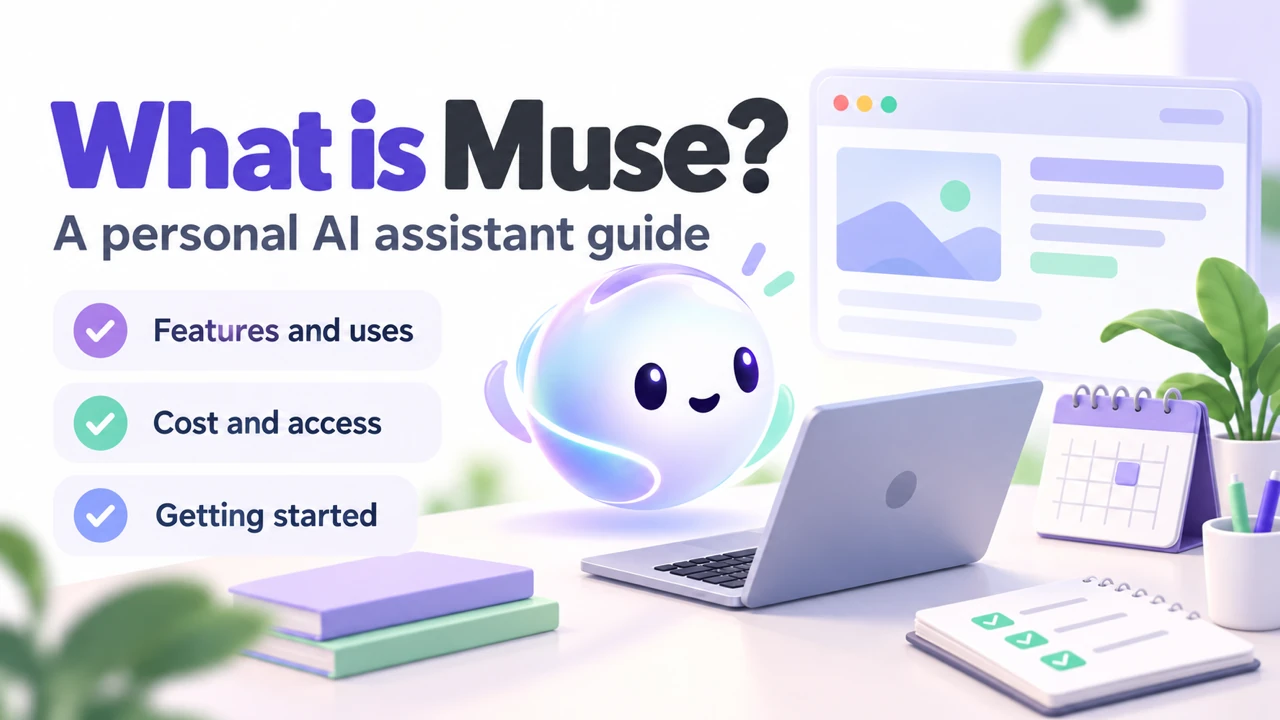
Muse is Meta’s personal AI agent. Give it a goal and it can use a browser and connected apps to move the work forward: research, organize tasks, create documents or coordinate schedules, asking for confirmation when needed.
Updated October 26, 2026. This guide covers the Muse app. Check your account for applicable pricing, availability and features.
What can Muse do?
- Organize information: turn meeting notes, emails or reference material into lists, tables and documents.
- Compare options: research travel or shopping choices using your dates, budget and preferences, keeping sources for review.
- Move a project forward: break a goal into steps and use authorized services to carry out relevant actions.
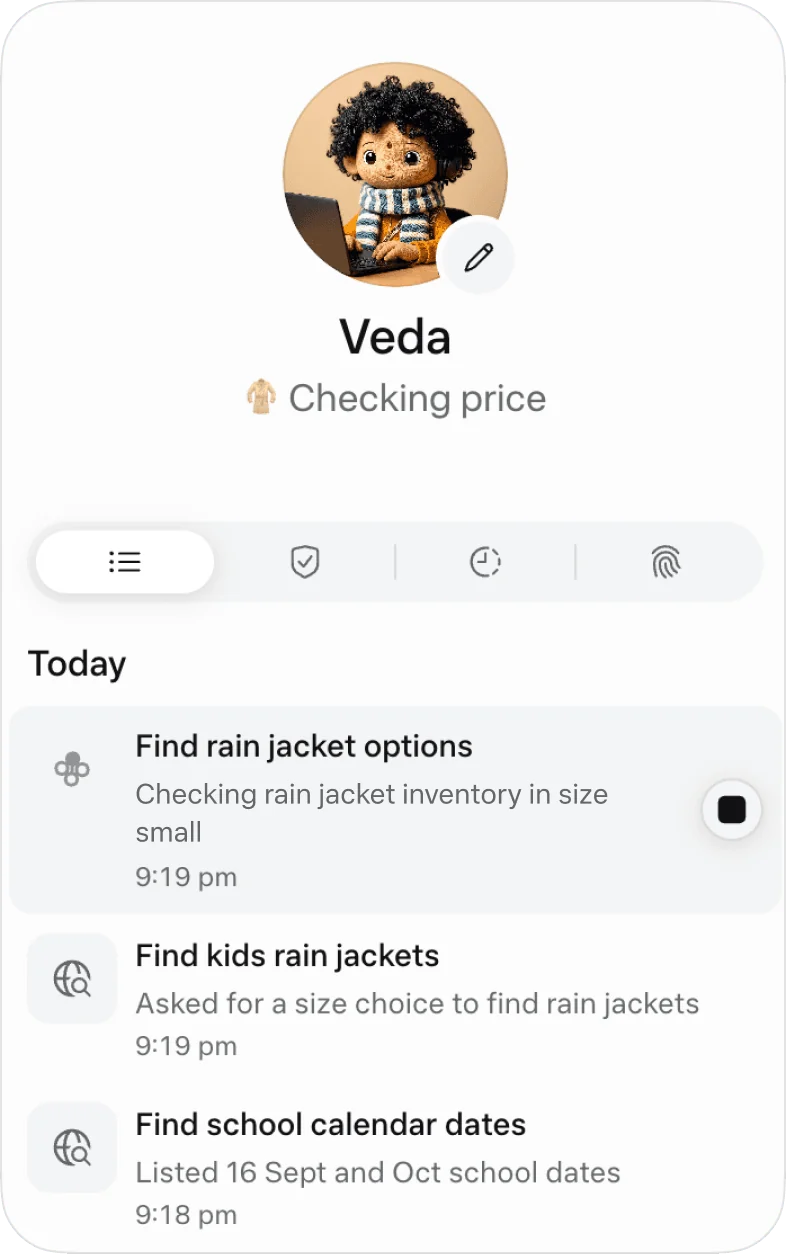
- Keep track: follow tasks or information in the background and review progress in the activity record.
Start with a task that has clear inputs, a finish line and an easy result to check. Actions involving email, calendars or other services also depend on the permissions you grant.
Is Muse free? How much are subscriptions?
Muse has a free usage allowance and paid subscriptions. Meta lists these plans:
| Plan | Subscription price | Usage allowance |
|---|---|---|
| Free | Free | Limited usage; wait for a refresh or upgrade when reached |
| Power | US$20/month | 500 million Muse tokens per week |
| Maximum | US$100/month | 3 billion Muse tokens per week |
Billing is monthly; the paid allowances above are weekly. Benefits may vary by region and account, and subscriptions normally renew automatically. Check the checkout screen and Meta’s subscription details before paying.
For products sold on this site, check their separate delivery specifications: Muse accounts and subscriptions.
Where is Muse available? What about mainland China?
As of October 26, 2026, we have not verified an official mainland China launch announcement. Meta has announced availability in the US, Canada and Mexico, with Japan launching on October 23. See the official Connect update and Japan announcement.
Check three things before starting: supported location, successful account sign-in and verification, and access to the feature you need. Opening the website or buying an account does not establish eligibility for every feature.
How to use Muse: your first task in four steps
This exercise uses a text task on the web, without connecting a personal email or calendar. Confirm that your account has access first.
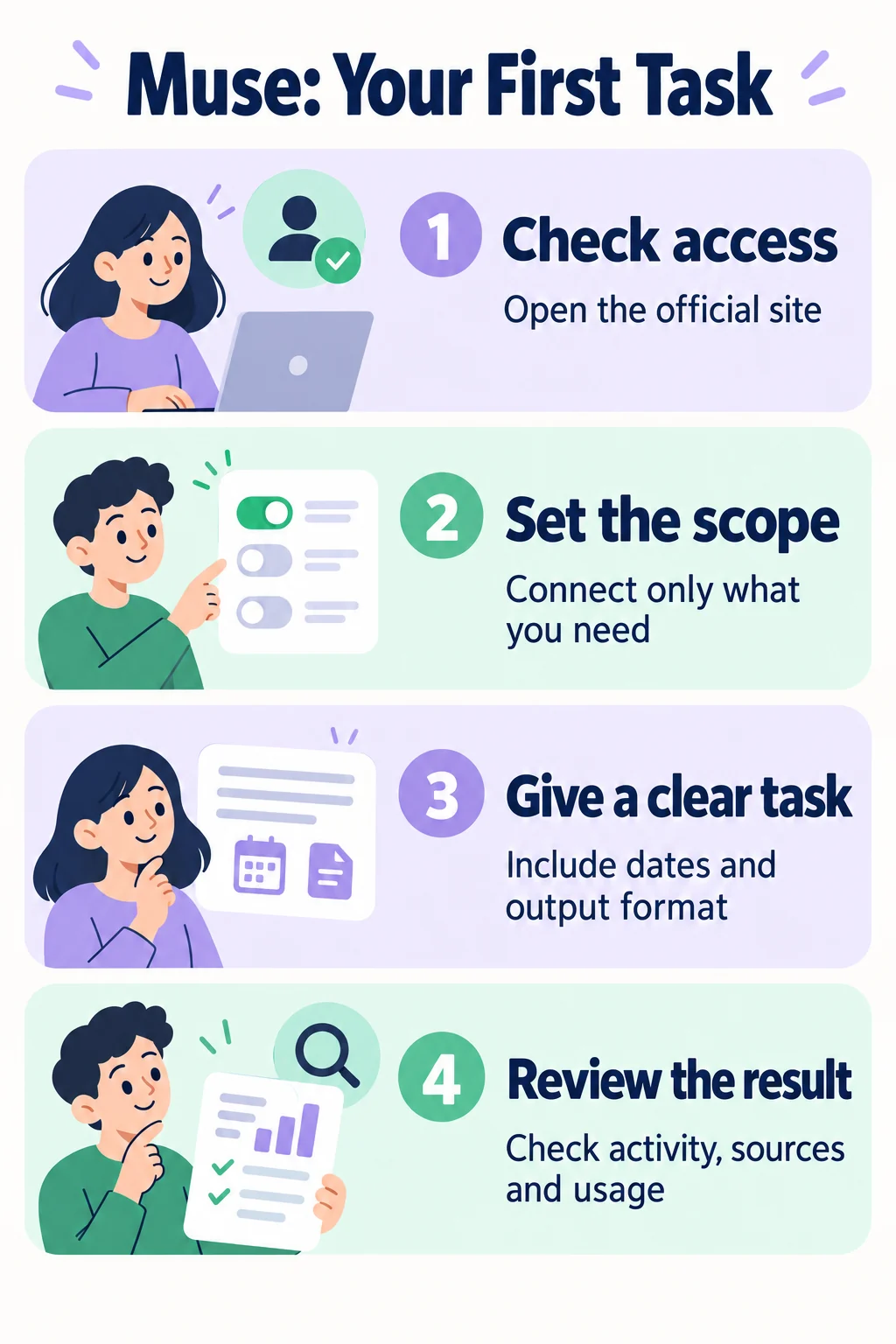
1. Open the official site and sign in
Open Muse, complete the requested sign-in or verification, and enter the task conversation. For an account delivered by this site, use our ready-made account sign-in guide.
2. Set the task’s scope
This exercise only organizes text you provide, so it does not need email, calendar or payment access. When a later task needs an external service, select it in the connector list in settings and read the permissions before connecting.
3. Send a clear instruction
Paste this example into the conversation input and send it:
Turn these tasks into a table with task, deadline and next step. If a date is missing, write “To confirm”; do not invent it. Only organize the information. Do not send messages or create calendar events. Tasks: submit the event draft by October 28, 2026 at 18:00; confirm availability with two participants; organize the existing materials.
This illustrative table shows what to check; it is not a recorded Muse test result:
| Task | Deadline | Next step |
|---|---|---|
| Submit the event draft | 2026-10-28 18:00 | Create an outline first |
| Confirm two participants’ availability | To confirm | Provide participants and possible times |
| Organize existing materials | To confirm | Provide the materials or file list |
4. Review the result before continuing
Check the dates, look for invented details, and confirm that no unrequested action occurred. Then try “Break the event draft into three steps” to extend the task. For external actions, review the activity record and approval prompts, then check the change in usage.
Muse, Muse Spark and Muse Wonder: what is the difference?
- Muse: the personal AI agent app covered here.
- Muse Spark: the underlying model used at Muse’s launch.
- Muse Wonder: a later model family. Meta’s October 12 announcement described subscriber-first Muse experiences; it does not establish that every account has upgraded.
- Meta AI: a separate assistant entry point with its own features and access conditions.
See the official Muse Wonder announcement for the rollout details.
Frequently asked questions
Is the free plan enough?
Try one small task and check its usage before upgrading. Tokens measure usage; they do not translate into a fixed number of completed tasks.
What should I check when granting access?
Check whether access permits reading, sending or editing, and whether approval is for one action or ongoing. Before sending or buying, review the recipient, contents and amount. Disconnect services you no longer use.
What if I have an account or email problem?
See the Muse sign-in email guide (Simplified Chinese) to change contact details. For an unlinked message, follow the Muse unlinked-account guide.
Read the Muse invite-code guide for obtaining and redeeming a code, sharing invitations, and distinguishing access requirements from referral rewards.