For the Muse AI app download, start with Meta’s official entry page and choose your device: App Store for iPhone or iPad, Google Play for Android, and the official download page for Mac. On other computers, start with the web app. This guide covers Muse from Meta; check that the mobile store lists Meta Platforms, Inc. as the publisher.
Official Muse download links by device
| Device | Official link | Before you install |
|---|---|---|
| iPhone / iPad | App Store: Muse from Meta | The US listing requires iOS 18.0 / iPadOS 18.0 or later |
| Android | Google Play: Muse from Meta | Check the Meta publisher and installation options for your device |
| Mac | Meta’s official Mac download page | Continue through Muse for Mac / macOS |
| Windows / other computers | Muse web app | Open it in a browser and sign in with a Meta account |
This guide covers Meta’s Muse AI app. For features, pricing and a first task, see our Muse features, pricing and beginner guide.
A store listing, compatibility with your device and access for your account are three separate things. Meta says the Muse app and website are not yet available everywhere. Being able to open the US store page does not establish that the app is listed in China’s App Store.
Jump to: official links, iPhone and iPad, Android, Mac, web and Windows, download troubleshooting, after installation, or frequently asked questions.
How to download Muse on iPhone or iPad
- On your iPhone or iPad, open the App Store link in the table above, or choose Open on iOS at muse.ai/join.
- Check the app name, Muse from Meta, and publisher, Meta Platforms, Inc. Then check compatibility: the US listing we reviewed requires iOS 18.0 or iPadOS 18.0 or later.
- If your store page offers the download, tap Get and follow the App Store verification prompts. Open Muse when installation finishes.
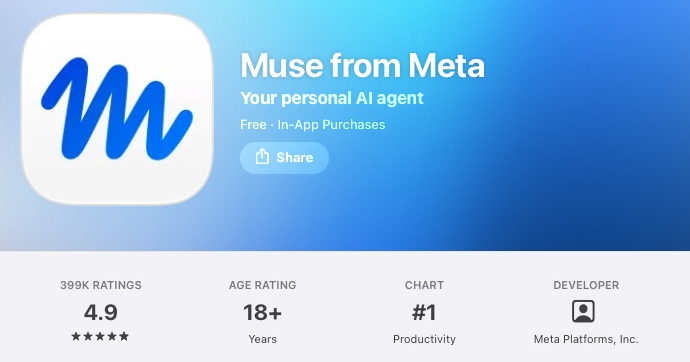
If a search returns other apps called Muse, check more than the icon or keyword. Follow the official website’s store link, then compare the full app name and Meta publisher. The app details, compatibility information and Get button should all belong to the same listing.
As of our October 30, 2026 check, we did not find a China App Store listing. The official iOS link points to the US App Store. A store page displayed in Chinese does not mean it belongs to the China storefront.
How to download Muse on Android
- Choose Open on Android at muse.ai/join to reach the Google Play listing linked by the official website.
- Check that the page shows Muse from Meta and the publisher Meta Platforms, Inc.
- Check whether installation is available for your current Google account and device. If the store reports regional unavailability or incompatibility, review that message before deciding what to do next.
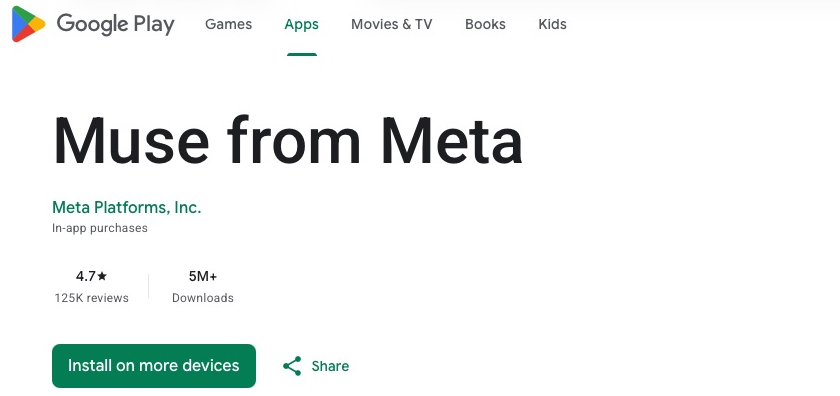
Open the store’s device-compatibility information and compare it with your device and OS. If installation is unavailable, check your Google Play country and parental controls, and keep a record of the exact message.
Where to download Muse for Mac
Muse has an official Mac app. Meta’s help page confirms it, and the Meta download page in the table above provides the official entry point.
- In a Mac browser, open ai.meta.com/muse/download/ and confirm that you are still on Meta’s official domain.
- Find Muse for Mac or Download for macOS and follow that entry’s official download instructions.
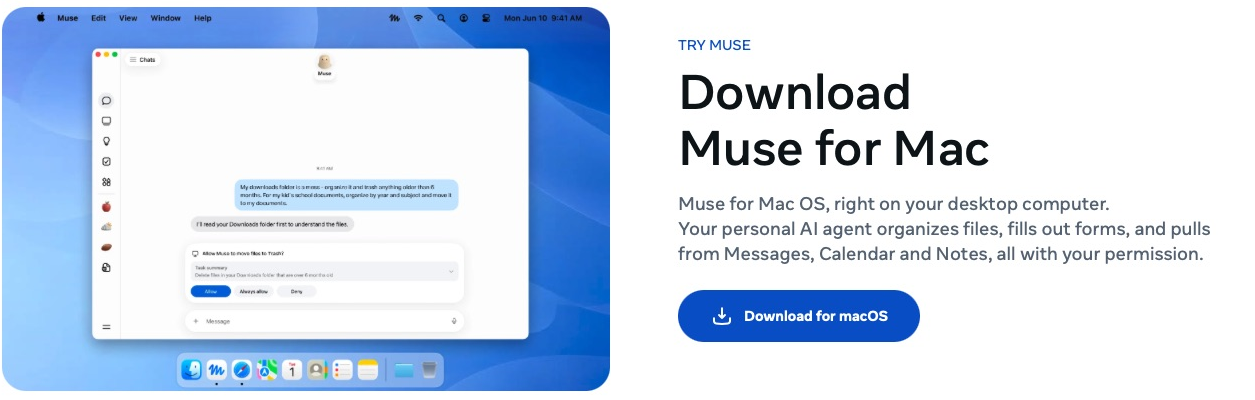
Before downloading, check the supported operating systems and chips through the official channel, then compare them with your Mac’s specifications.
Using Muse on Windows or the web
On Windows, use the Muse web app. The official join page’s Open on web button points to muse.ai. Follow the prompts to sign in with a Meta account, then check the access requirements shown for your account.
- Open muse.ai in your browser, or choose Open on web on the official join page.
- Follow the prompts to sign in with a Meta account. If you see an access or regional-availability message, note its exact wording and follow the applicable instructions.
Muse not showing up, unavailable in your region, or failing to download?
First identify the stage where you are stuck, then follow the relevant message. Google Play’s official troubleshooting help lists several reasons an app may not appear, including availability, device compatibility, Play country and parental controls. An empty search result alone does not identify a regional restriction, an IP issue or a risk-control block.
| What you see | What you can establish | Next step |
|---|---|---|
| Muse does not appear in store search | The search result does not establish a single cause | Use the official website’s direct link to check the name and publisher, then review store country, device compatibility and parental controls |
| The store explicitly says the app is unavailable in your region | The download is restricted for the current store region | Check your store country and the message; access to the US store web page does not establish download availability in your current region |
| The device is incompatible or its OS is too old | The device does not meet that listing’s installation requirements | Compare the device OS with the listing; the verified 18.0 requirement applies to iPhone / iPad, not Android |
| An error occurs while downloading or installing from the store | Installation is incomplete; this does not establish Muse account eligibility | Record the full store error and follow the store’s support route; account verification-code instructions do not resolve installation errors |
| Muse opens, but you are stopped at sign-in or an access check | The download stage is complete; the next issue concerns account access | Check the sign-in method and eligibility shown on the current page; repeated reinstalls do not replace an eligibility check |
For further troubleshooting, note the full error, your current store country, device model and OS version. Check whether the error appears before downloading, during installation or after opening Muse, so you can follow the appropriate store or account support process.
If you bought a Muse account from this site, have installed the app and cannot receive a sign-in code, use our Muse account sign-in and verification-code guide to check the delivery instructions for your order. If you registered your own account, check your own sign-in email inbox.
If you have opened Muse and actually see an “unlinked” account message, follow our Muse unlinked-account guide to record the message and address account access.
What to check after installation
- Open Muse and confirm that you have left the store’s download page.
- Follow the prompts to sign in with a Meta account. Meta’s getting-started help says that both the app and website use a Meta account.
- Read the access and usage messages shown for your account. A successful store installation does not replace this check.
If you need to redeem a referral code after installation, see our Muse referral-code redemption guide. Downloading the app and redeeming referral rewards are separate steps; a reward code is not a prerequisite for using the official store download links above.
After installation, check model names and entitlements with our Muse models and access guide.
Muse download FAQ
What is the official app called?
The app is Muse from Meta, published by Meta Platforms, Inc. Follow the official website to the store and check both details to avoid choosing another app with the same name.
Is Muse free to download?
Yes, but a free download does not mean unlimited free use. The store listing includes in-app purchases. Meta’s getting-started and usage help explains that free Muse use has a limit; after reaching it, you can wait for a refresh or choose a subscription.
Do I need to find an APK for Android?
Start with the Google Play link provided by the official website. We have not obtained a verifiable direct APK link from Meta and do not present third-party files as official downloads.
How do I download Muse on Windows?
Open muse.ai to use the web app. We have not verified an official native Windows installer, so this guide does not list an EXE download link.
Is Muse listed in China’s App Store?
We did not find a China App Store listing in our October 30, 2026 check. The official iOS link points to the US App Store.
Do I need an invite code to download Muse?
Installing from the official store and redeeming referral rewards are separate steps. Start with store installation. If an access requirement appears when you open the app, follow the on-screen instructions. Redeeming a reward code does not replace the eligibility check for your account.