After receiving a Muse ready-to-use account, first check the delivery as instructed in your order, confirm the account status and your permission to manage the account and change its details, then follow the applicable security instructions one step at a time. You do not need to change the email immediately after your first login, and you should not change several account details at once. Report any problem promptly as required by your order. The example below is for an account delivered with a Microsoft mailbox that permits an email change; follow your own order if its instructions differ. This guide does not apply to Muse invitation services.
Preparation and the order for changing the Muse email
What you need:
- The Microsoft email address from your delivery details, together with its code link or mailbox password, for the first Muse login;
- An email address you control long term and can use to receive verification codes, such as Gmail, QQ Mail or Outlook.
⚠️ Follow this order:
First, add and verify the new email → then set it as the default → only then delete the old email. Before the new email is verified and set as the default, do not delete the old email, or you may lose access to the account.
The example below manages contact details through Meta Account. Use this method only when your order and account page support it. Screens may differ by version, language and account permissions; follow the actual page prompts. Images help locate the controls and can be opened at full size on a phone.
Sign in to Muse with the delivered email
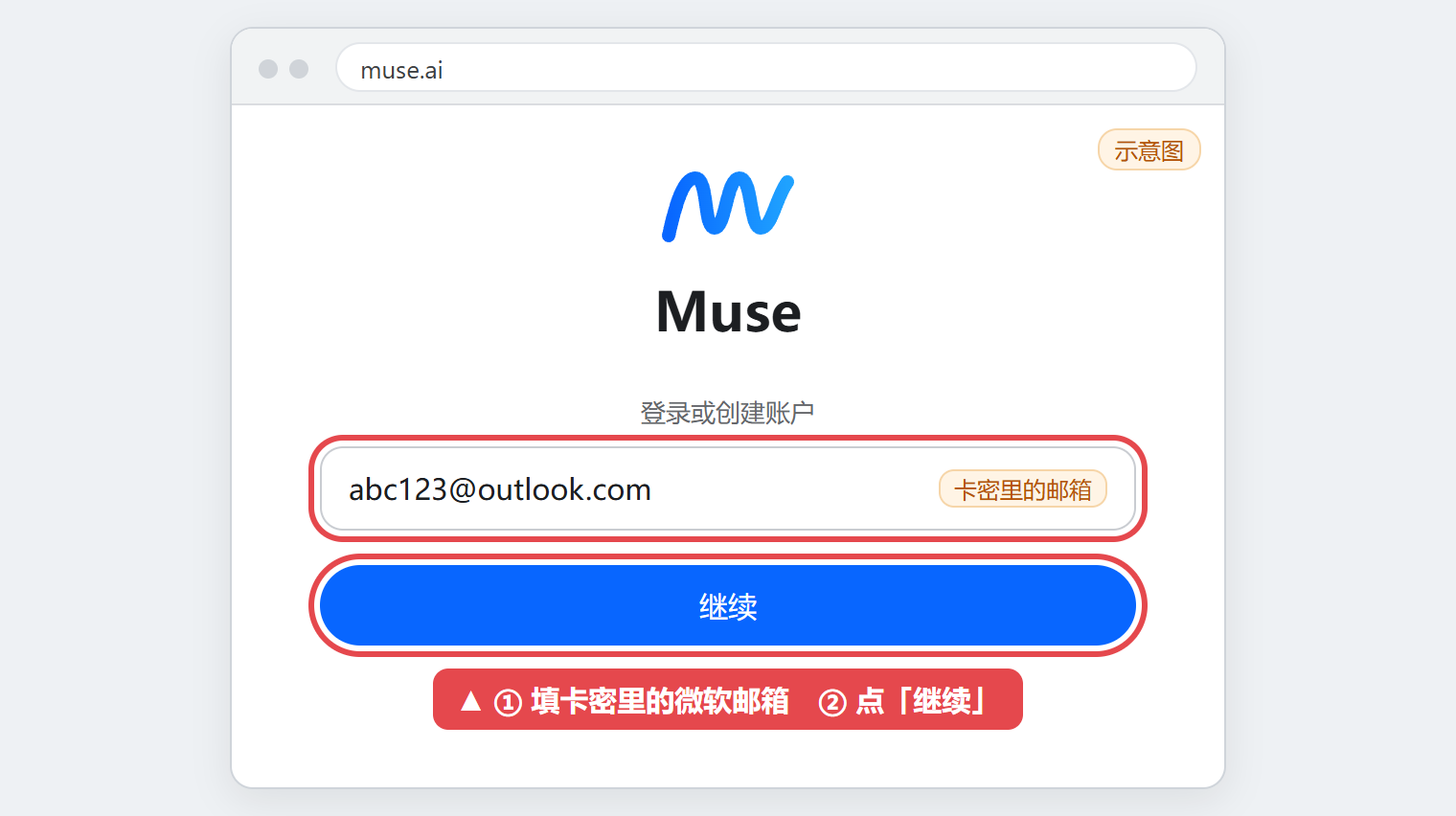
Step 1:Open muse.ai, enter the Microsoft email from your delivery details under “Log in or create an account”, then select “Continue”.
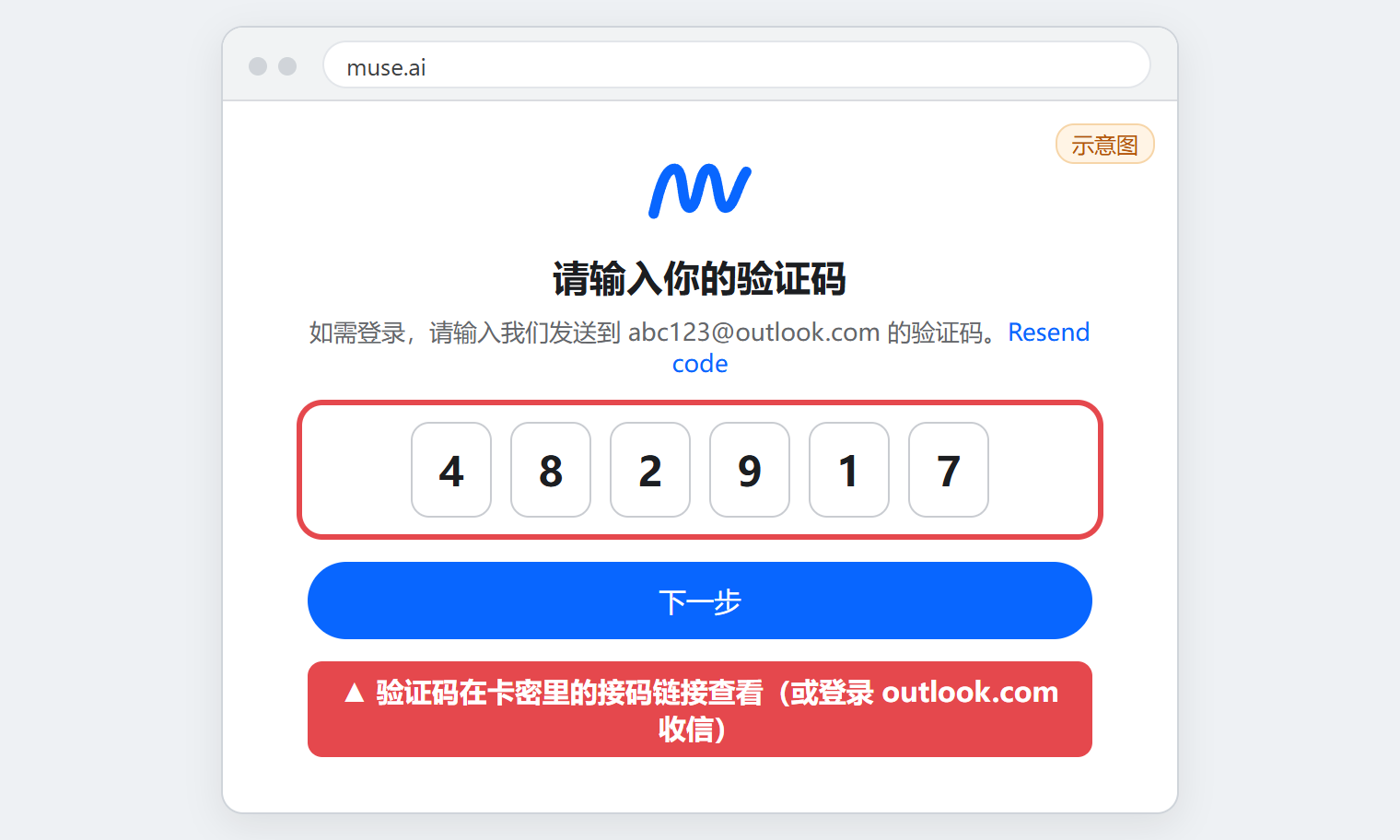
Step 2:Muse sends a verification code to that email. Enter it and select “Next”. To retrieve the code:
- If your delivery includes a code link, open that link to check the code;
- If no code link is provided, as with the 31-billion-token example, sign in to outlook.com with the delivered email and mailbox password to check the inbox.
Open Meta Account from Muse settings
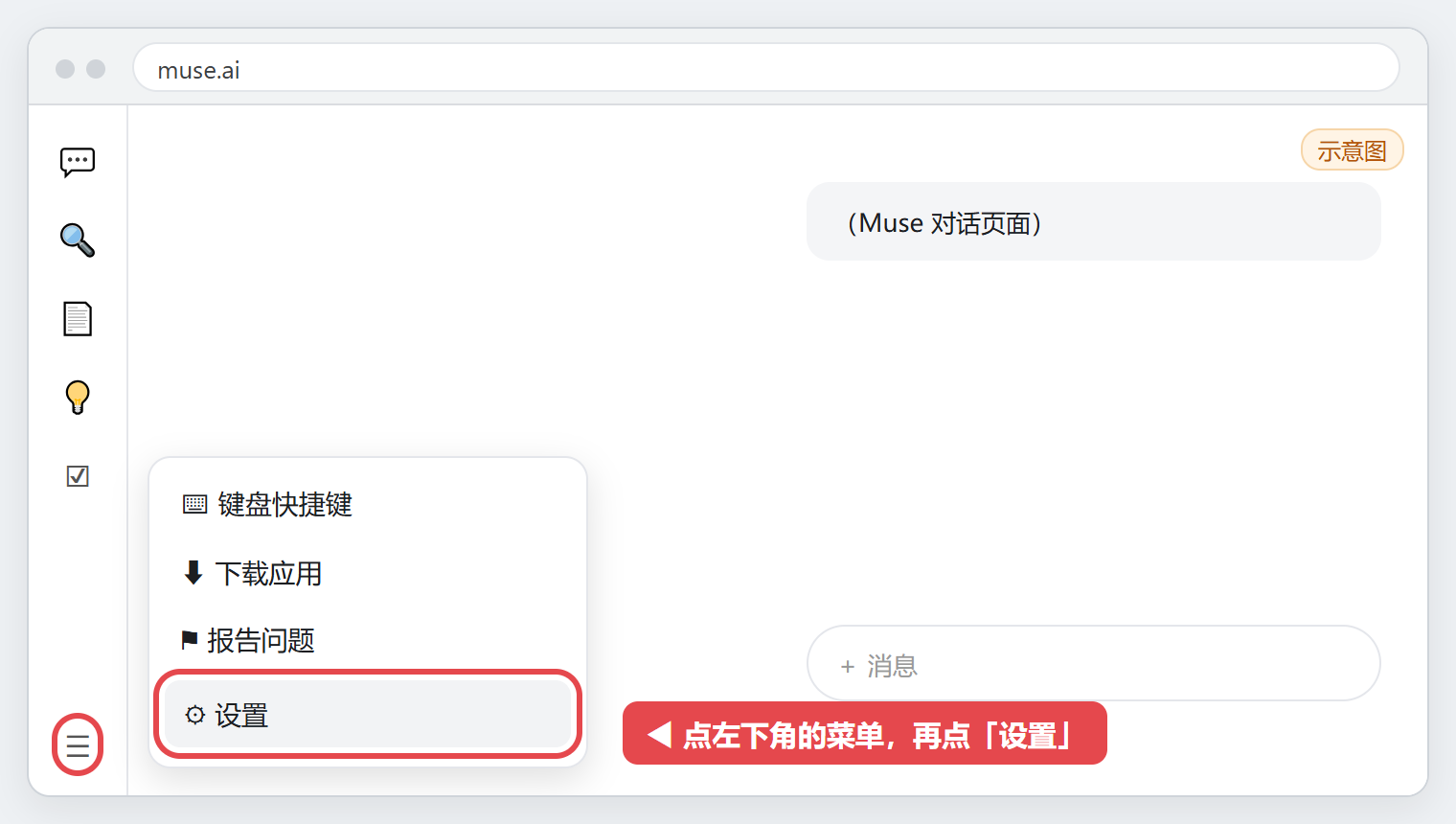
Step 3:After signing in, open the menu in the lower-left corner of the page, then select “Settings”.
Step 4:Under “General” in Settings, select “Meta Account”.
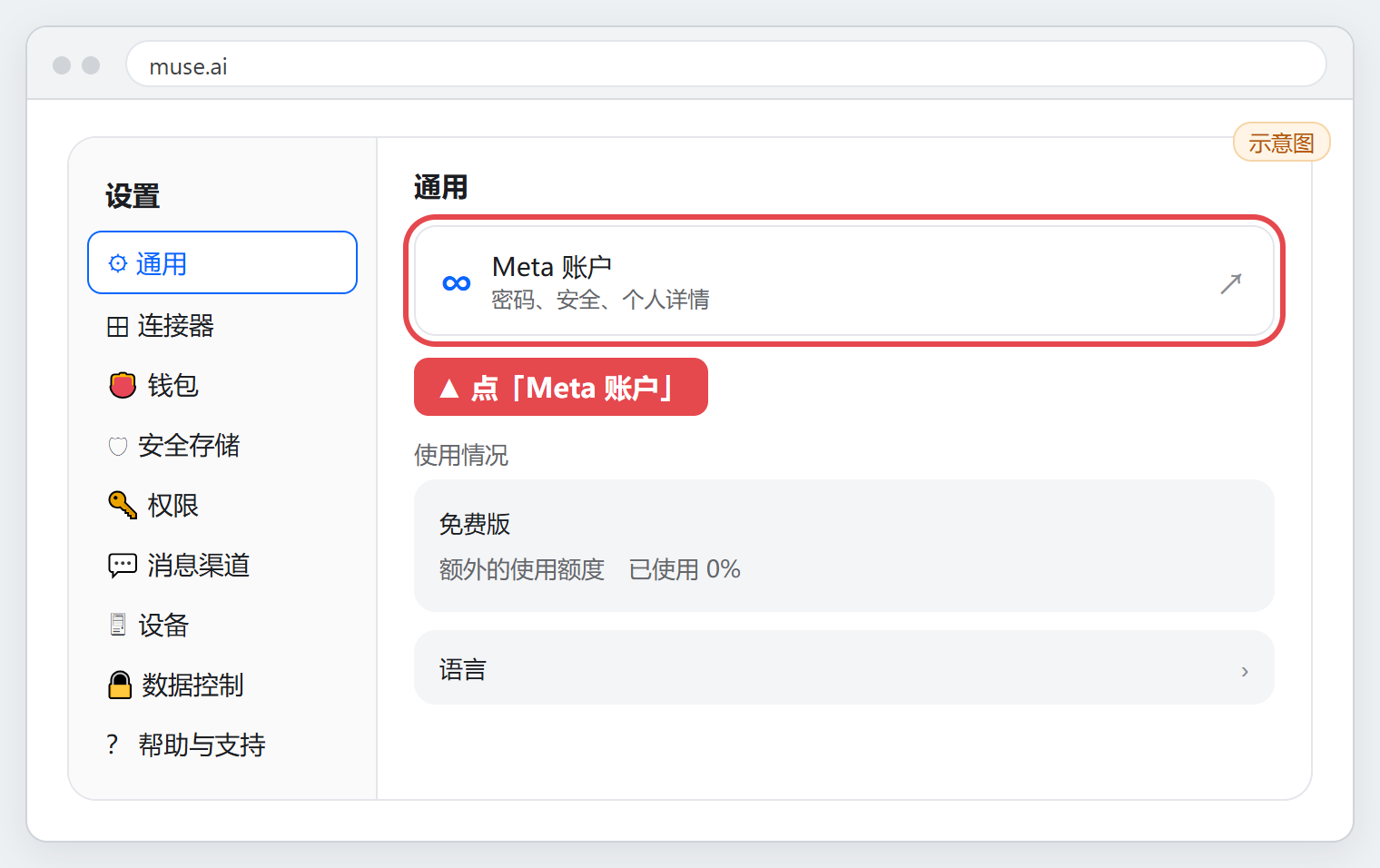
Step 5:On the Meta Account Home page, select the row displaying the email address.
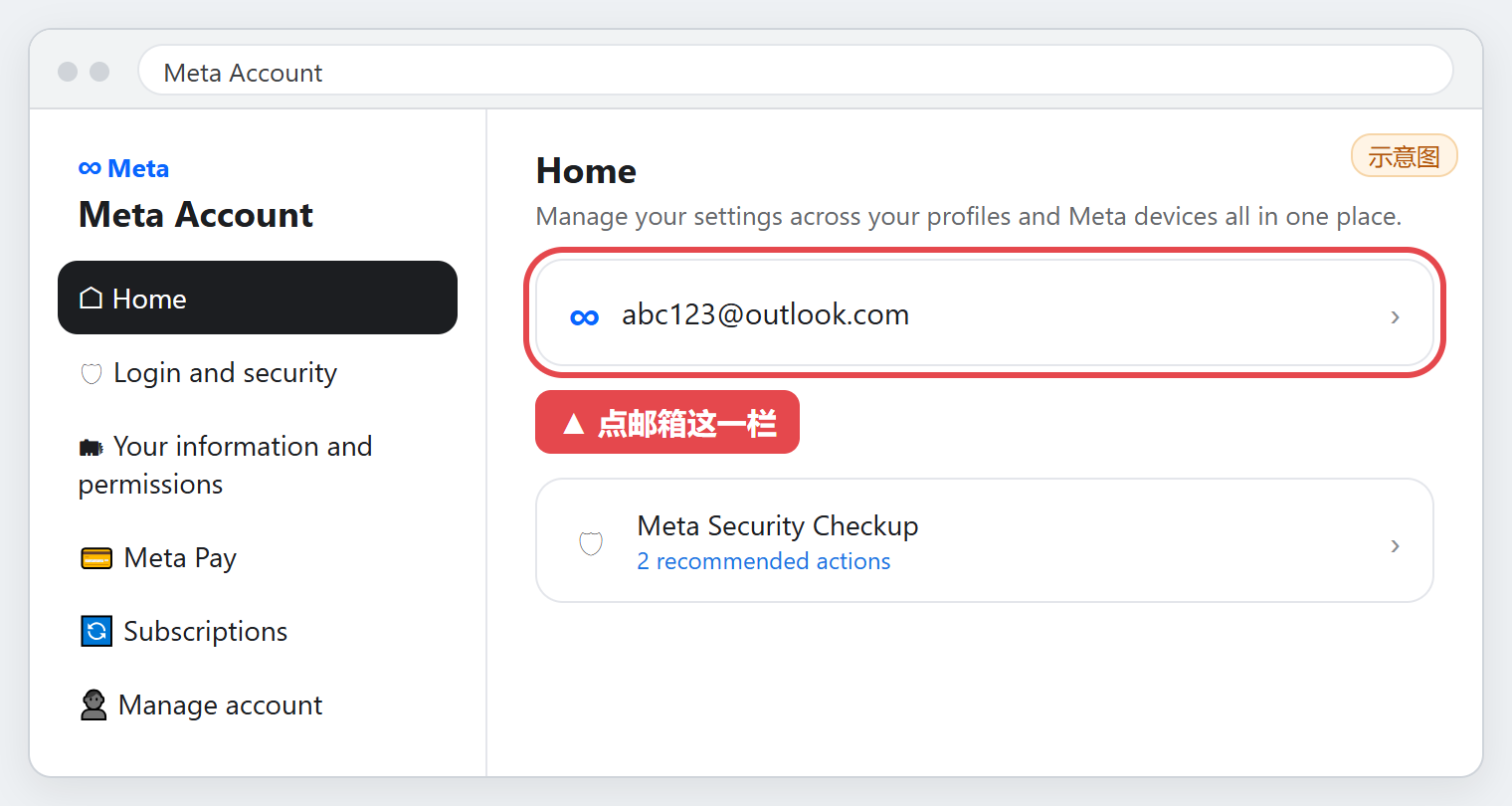
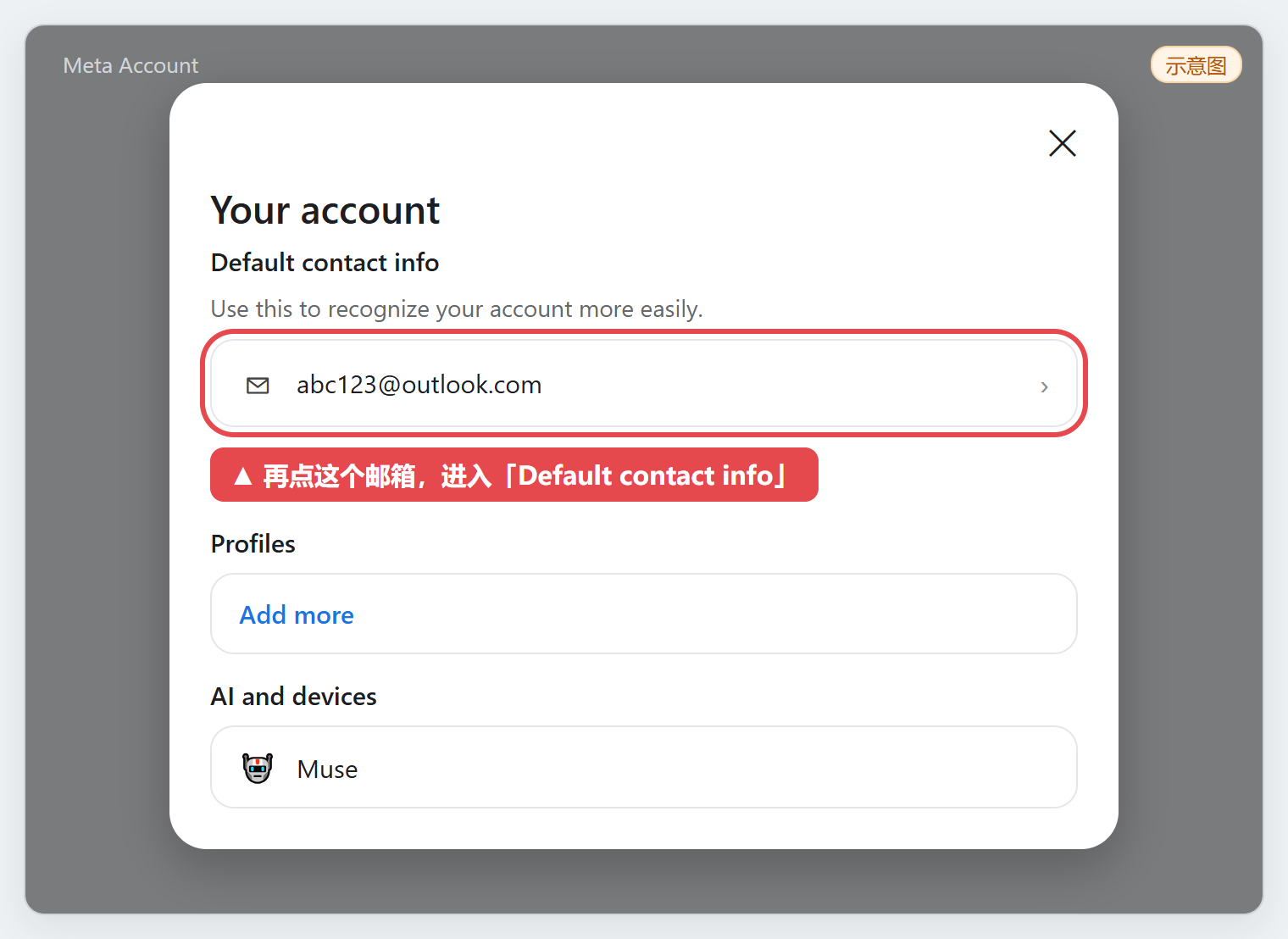
Step 6:In the “Your account” dialog, select the email under “Default contact info”.
Add your personal email and verify it
Step 7:Under “Default contact info”, select the blue “Add or edit contact info” link at the bottom.
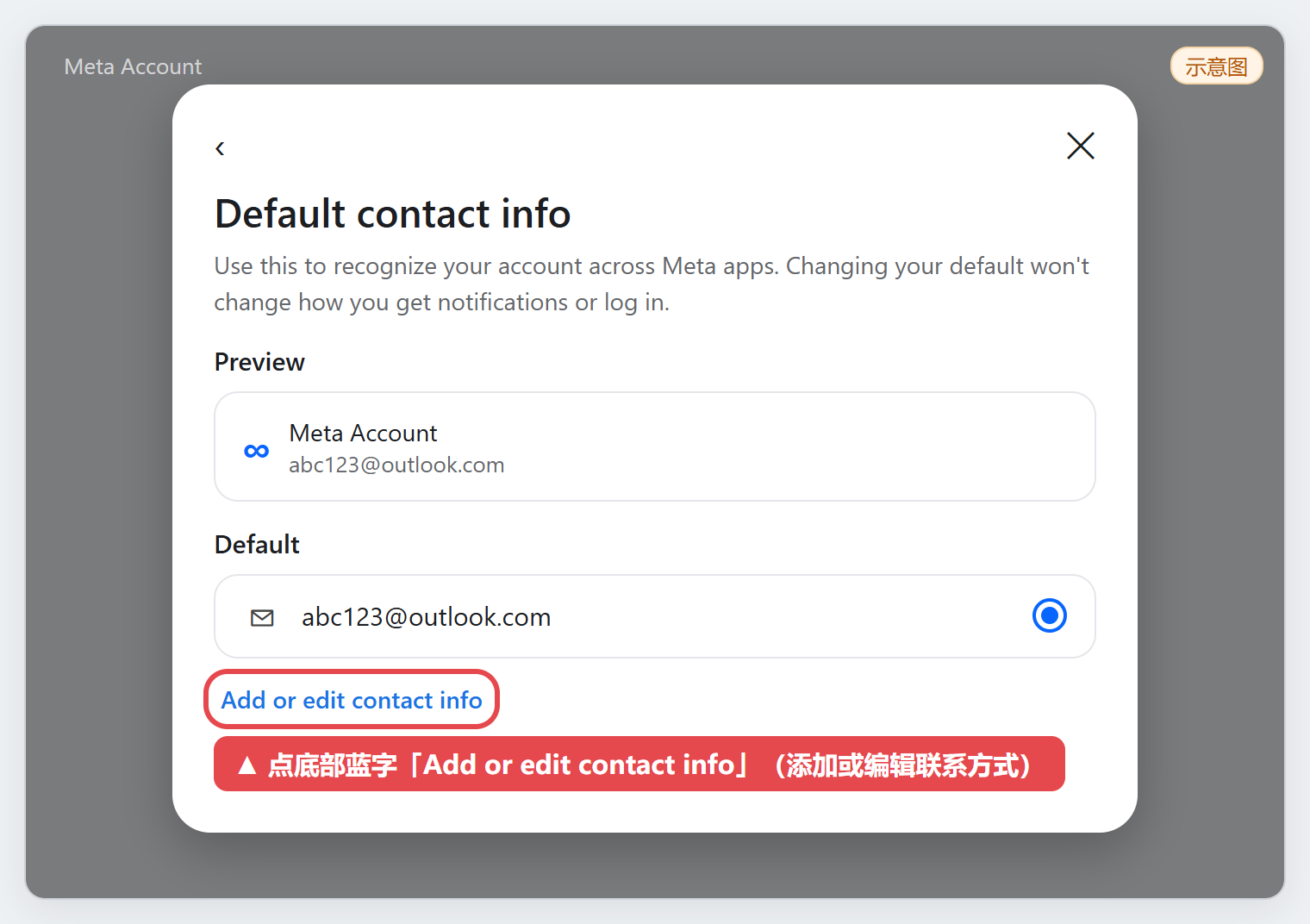
Step 8:On the “Contact info” page, select “Add new contact info”, then select “Add email” from the expanded options.
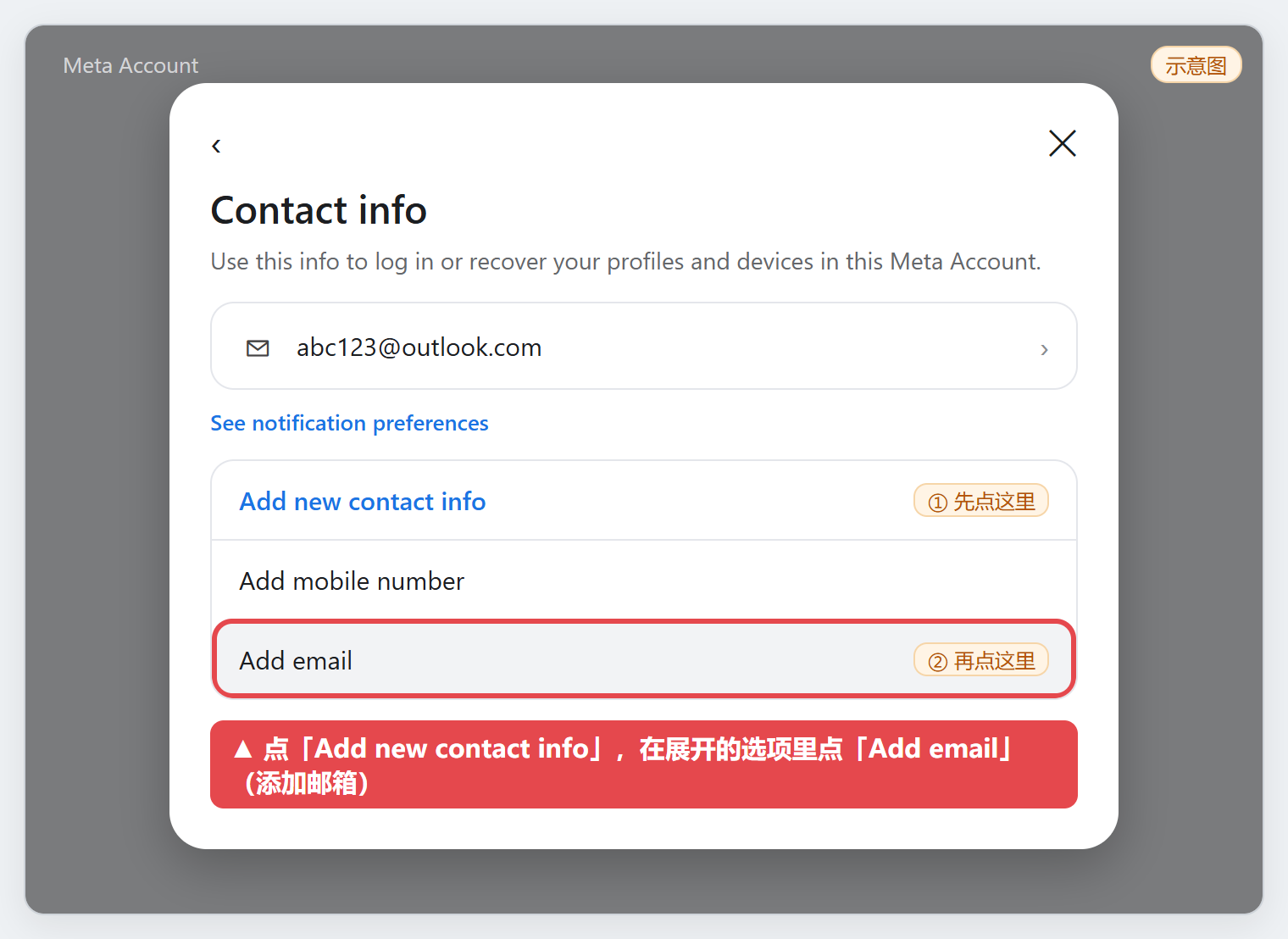
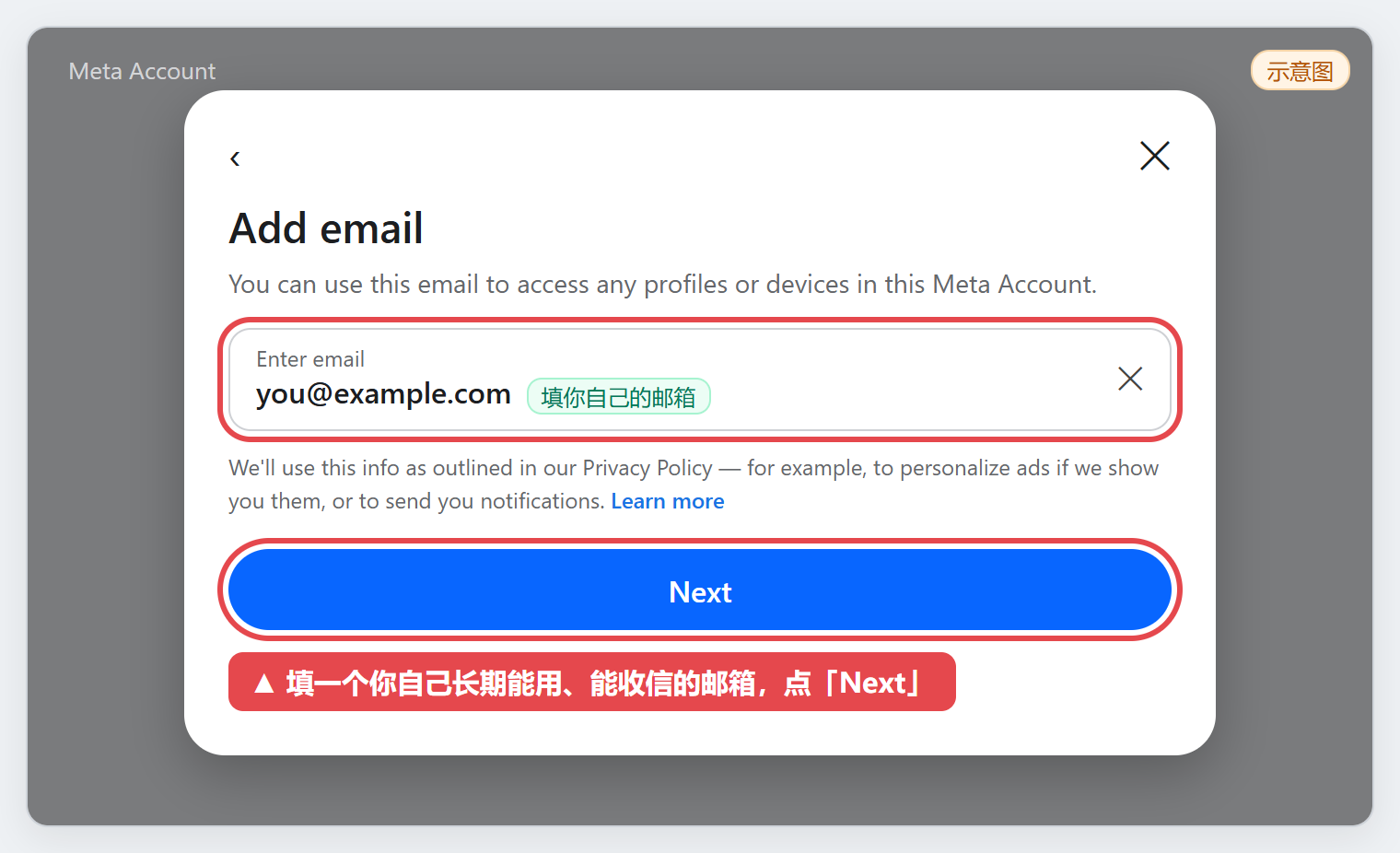
Step 9:Enter your own email and select “Next”. If the page says the address cannot be used, try another email address you control.
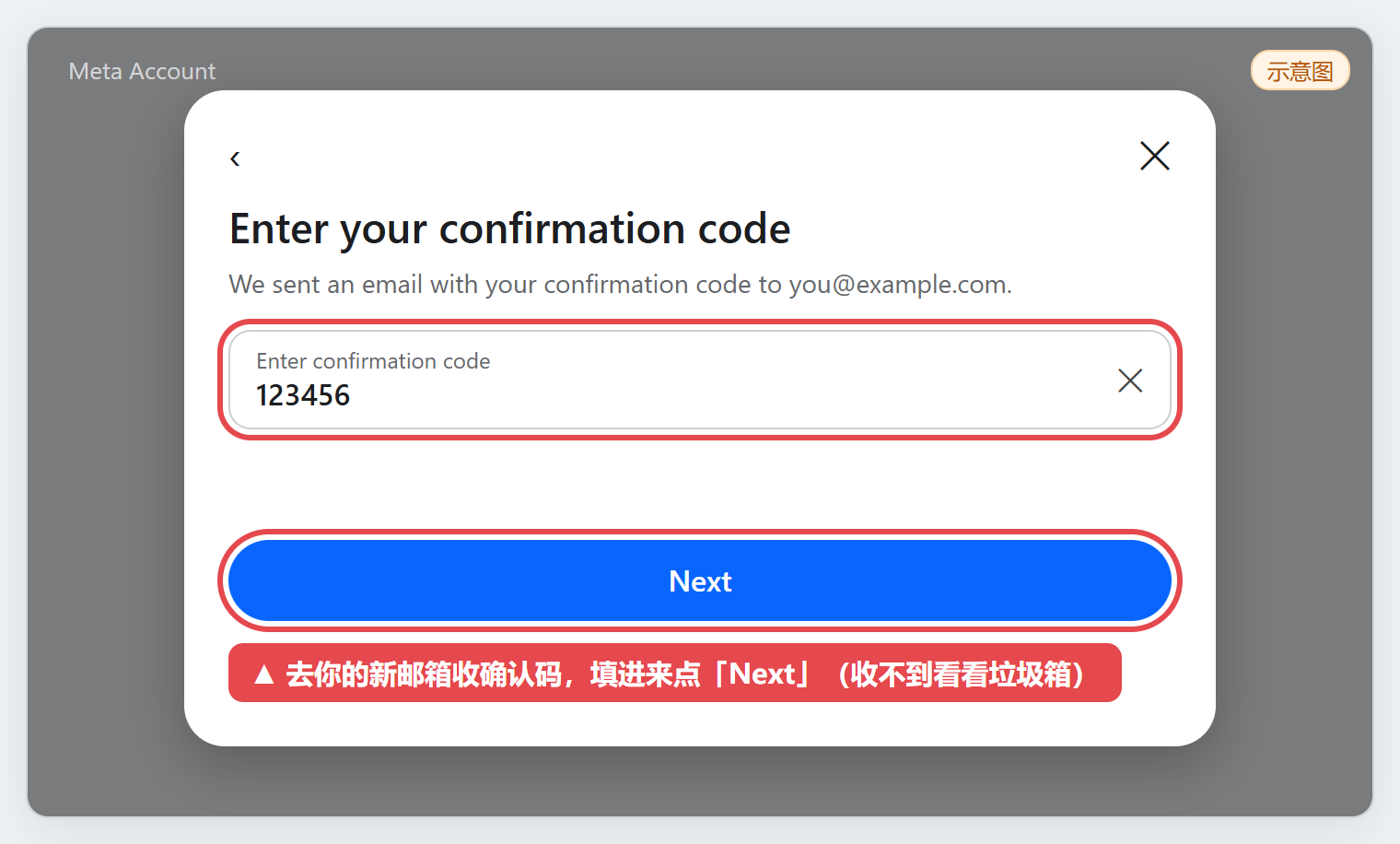
Step 10:Check your new mailbox for the confirmation code from Meta, enter it, then select “Next”. Check the spam folder if it is missing. After verification, the page returns to Meta Account.
Set the verified email as your default contact
Step 11:Back in Meta Account, repeat steps 5 and 6 to reopen “Default contact info”: select the email row, then select the email in “Your account”.
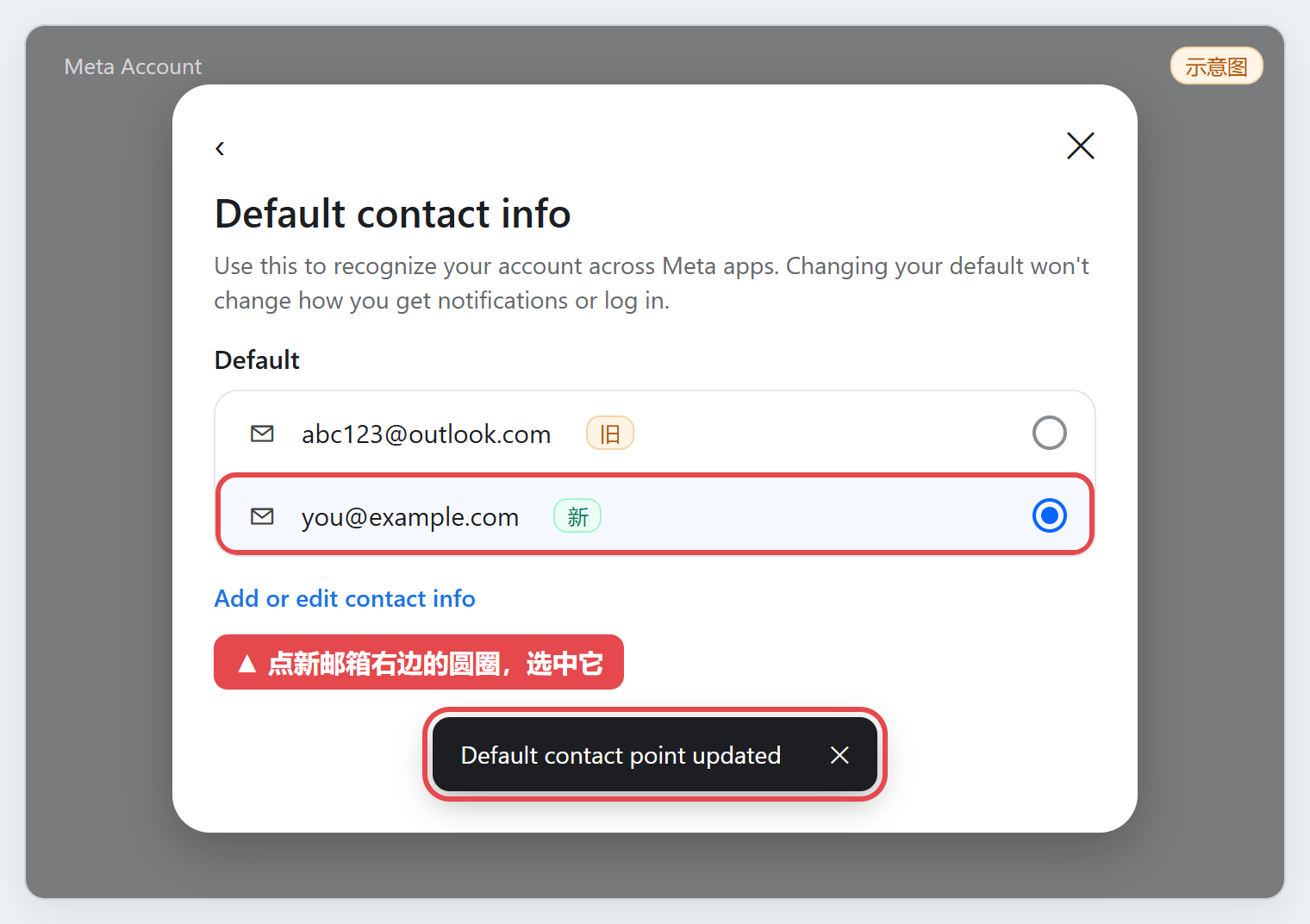
Step 12:You should now see two email addresses under “Default”. Select the circle to the right of the new email row. The change is complete when “Default contact point updated” appears.
Remove the old login email after confirming the default
Step 13:In “Default contact info”, select “Add or edit contact info” to open “Contact info”, then select the old email row: the Microsoft address from your delivery details.
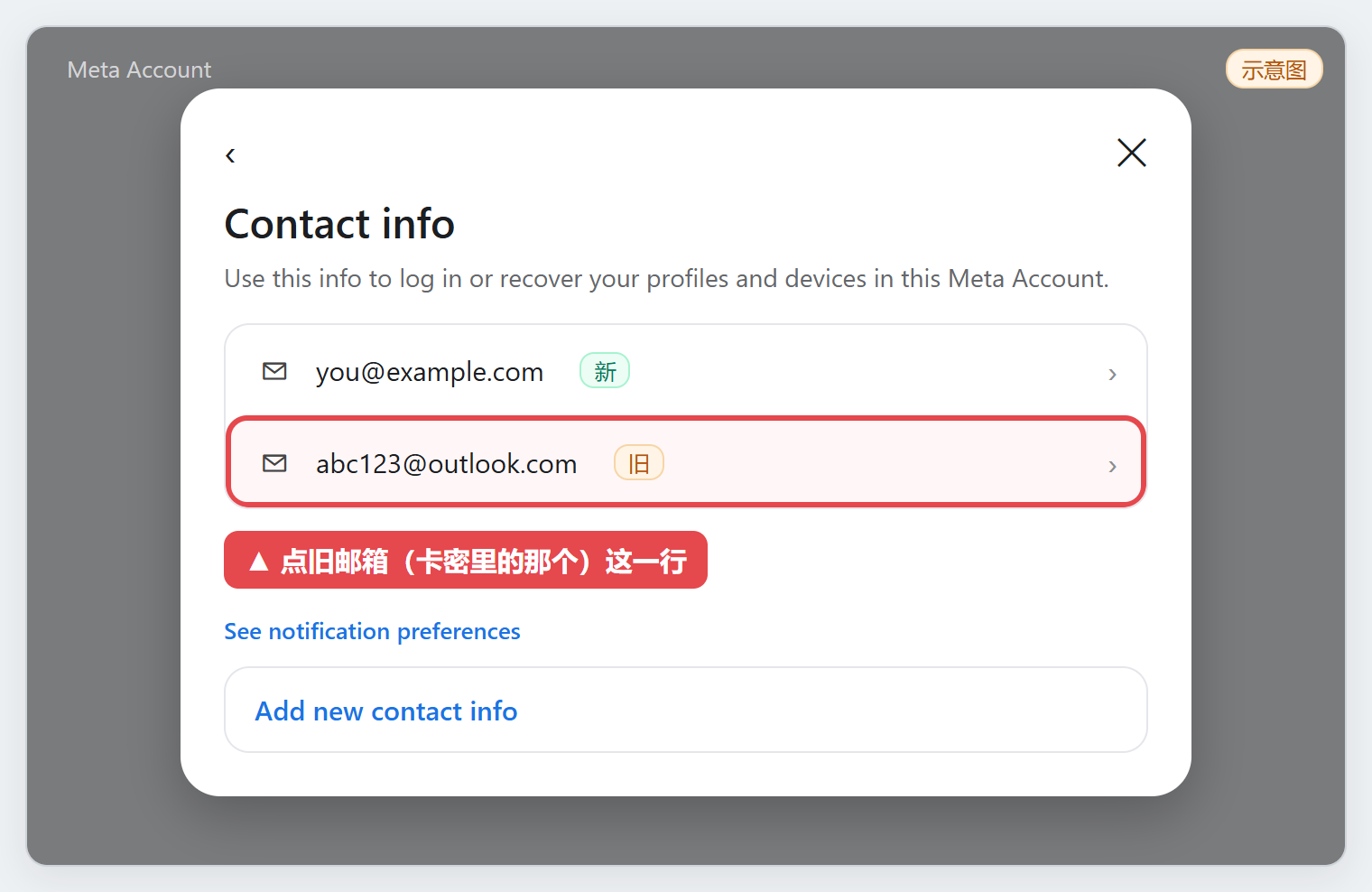
Step 14:Confirm that the address displayed at the top is the old email, then select the red “Delete email” option.
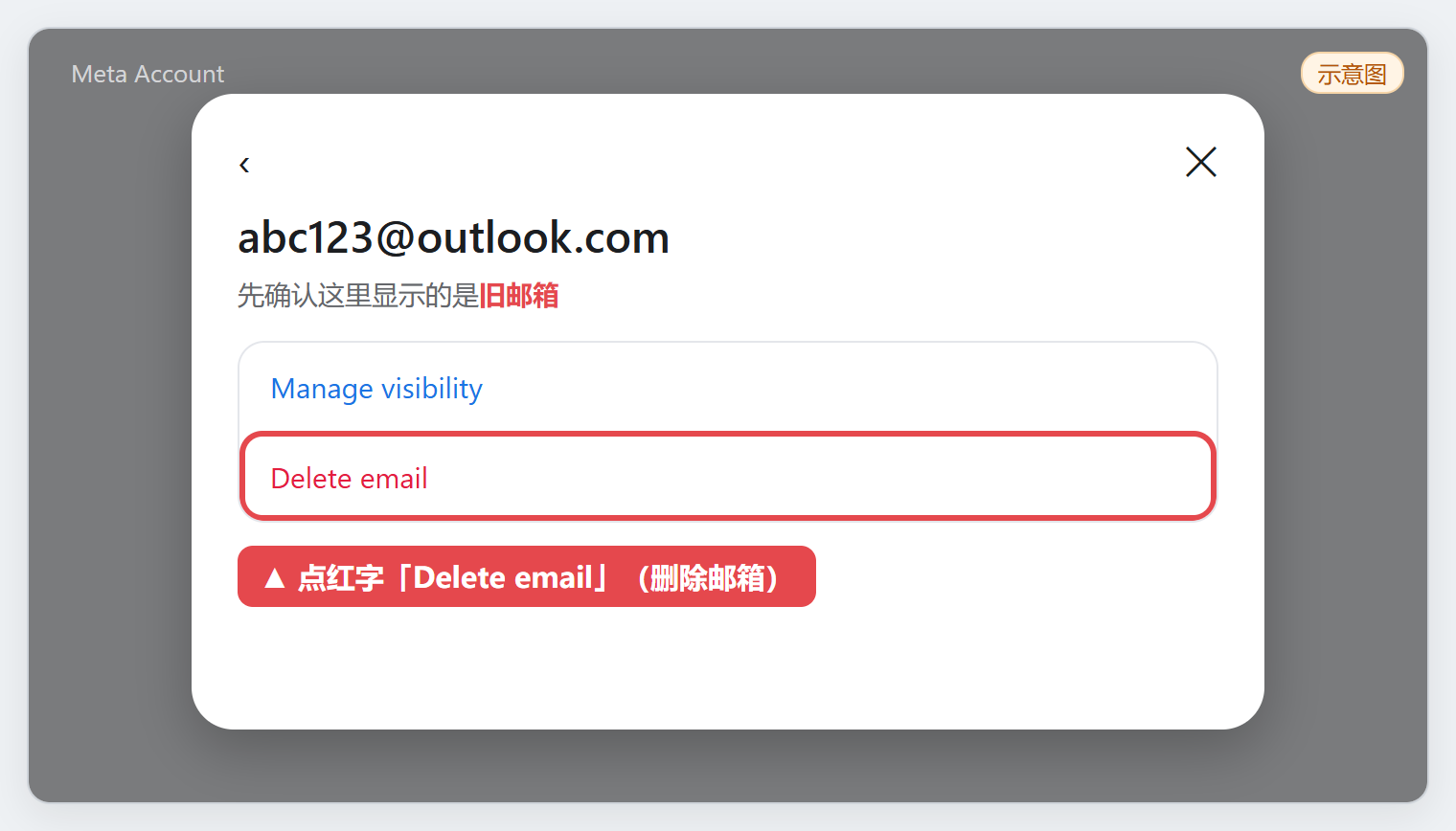
Step 15:The confirmation dialog explains that the removed email can no longer be used to sign in, reset the password or receive notifications. Confirm that the new email is verified and set as the default, then select the blue “Delete” button.
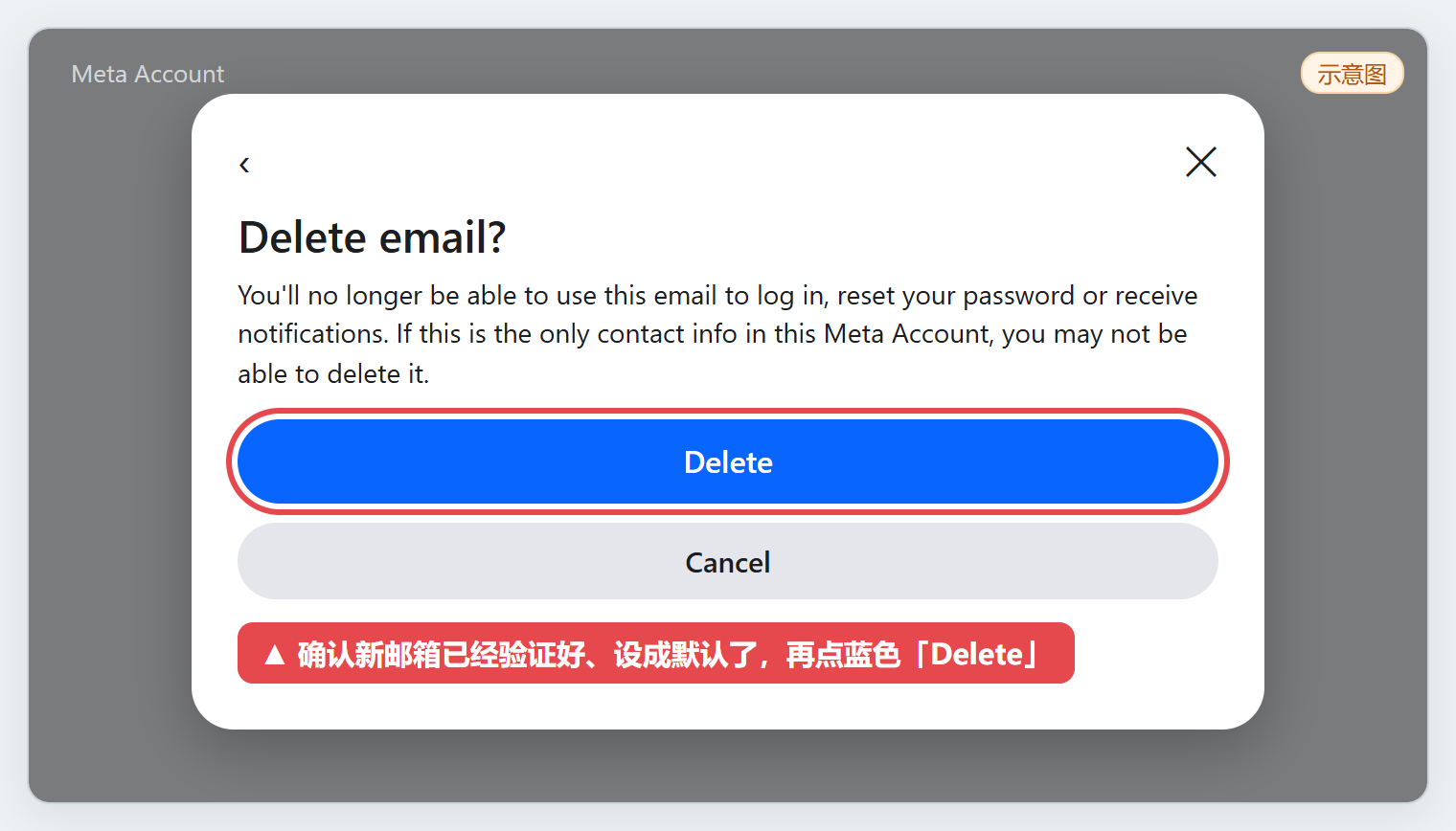
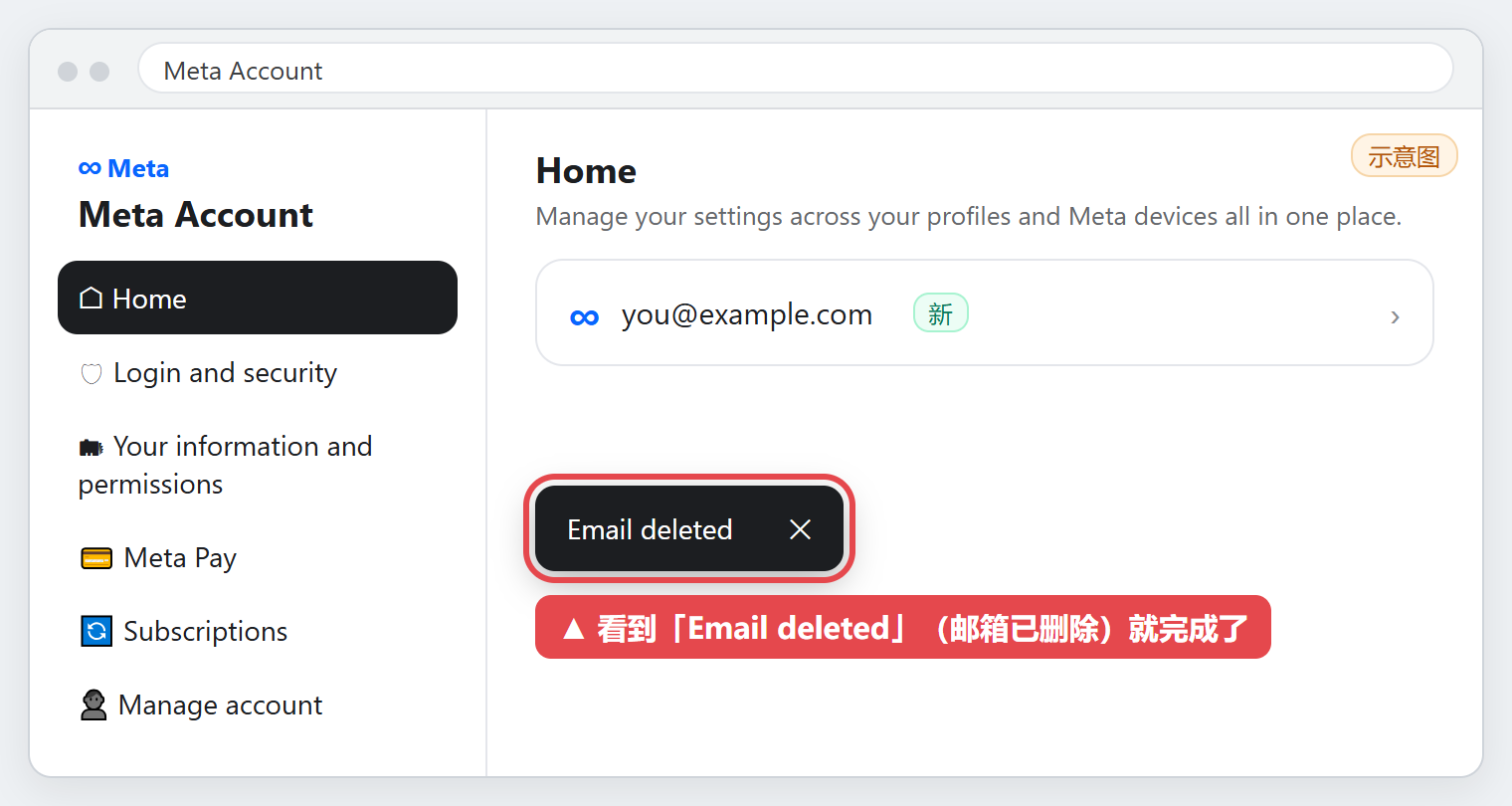
Step 16:When “Email deleted” appears, the change is complete. Use your new email to receive codes for later Muse logins.
Verification-code and email-removal questions
- The old email cannot be removed because it is the only contact:The new email has not been added successfully. Return to the third section, add and verify it, set it as the default, then remove the old address.
- The new email does not receive a confirmation code:Check the spam folder, then wait as directed by the page or its countdown before retrying. If codes still do not arrive, stop repeated requests and contact support with your order number.
- The delivered mailbox stops working before the email change is complete:Contact support with your order number.
For product features and usage requirements, see What Is Muse? A Beginner Guide.