After buying a Muse ready-to-use account, the first login is straightforward: check your network setup, work out which delivery format you received, then sign in at muse.ai and retrieve the code as prompted. Progress depends on the account status and verification result.
This guide from the Maihao AI editorial team covers setup checks, delivery formats, verification codes, delivery inspection and permitted security settings. First check the delivery and account status as instructed in your order. It applies only to Muse ready-to-use accounts you may manage independently and whose details you are explicitly allowed to change; it does not apply to Muse invitation services. Once you have confirmed that an email change is permitted, follow the applicable security instructions and the Muse login email change guide one step at a time.
⚠️ Read these four requirements before your first login:
First check that your region and account meet Muse’s current access requirements, then check your network, mailbox and browser. A private window can help isolate a cache issue; it does not grant access eligibility or prevent account verification.
Before you start: four setup checks
- Check access eligibility first. Follow Muse’s current official supported regions and the message shown for your account. Buying an account or changing IP does not establish eligibility. Do not switch regions to bypass restrictions.
- Check your network and browser. Use a stable connection and check the login email. If you suspect cached data or an extension, try one comparison in a private window; that alone cannot diagnose IP risk controls.
- Wait after requesting the code. Follow the page’s countdown or instructions before refreshing the relevant inbox. Do not request codes repeatedly.
- Muse shows “Join the waitlist” or “This region isn’t supported yet”. Check regional availability, account eligibility and the on-screen instructions. These messages do not by themselves prove a cache or risk-control problem. If you are not eligible, wait for official availability or contact support.
Step 1: Identify your delivery format
Look at the delivery message that came with your order and decide which of the three formats below it matches. Note: if the message starts with numbers such as 128. or 156., that is only a product serial number — never paste it into the login field.

Step 2: Sign in and collect the code for each format
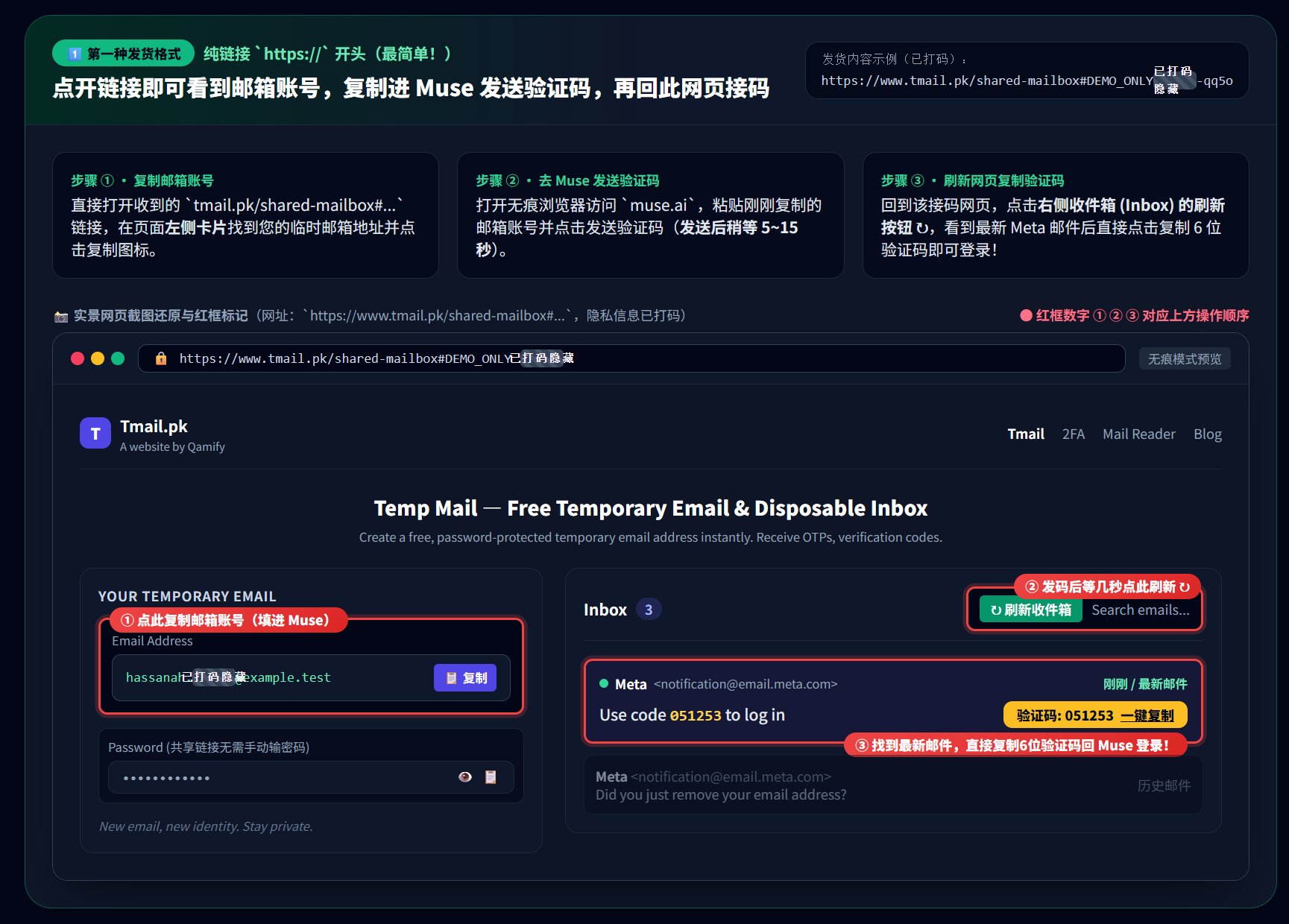
Format 1: a plain link (starting with https://)
Open the link and you will see the email address. Enter that address in the muse.ai login box and request the code, then return to the code page behind that link, refresh it and copy the code.
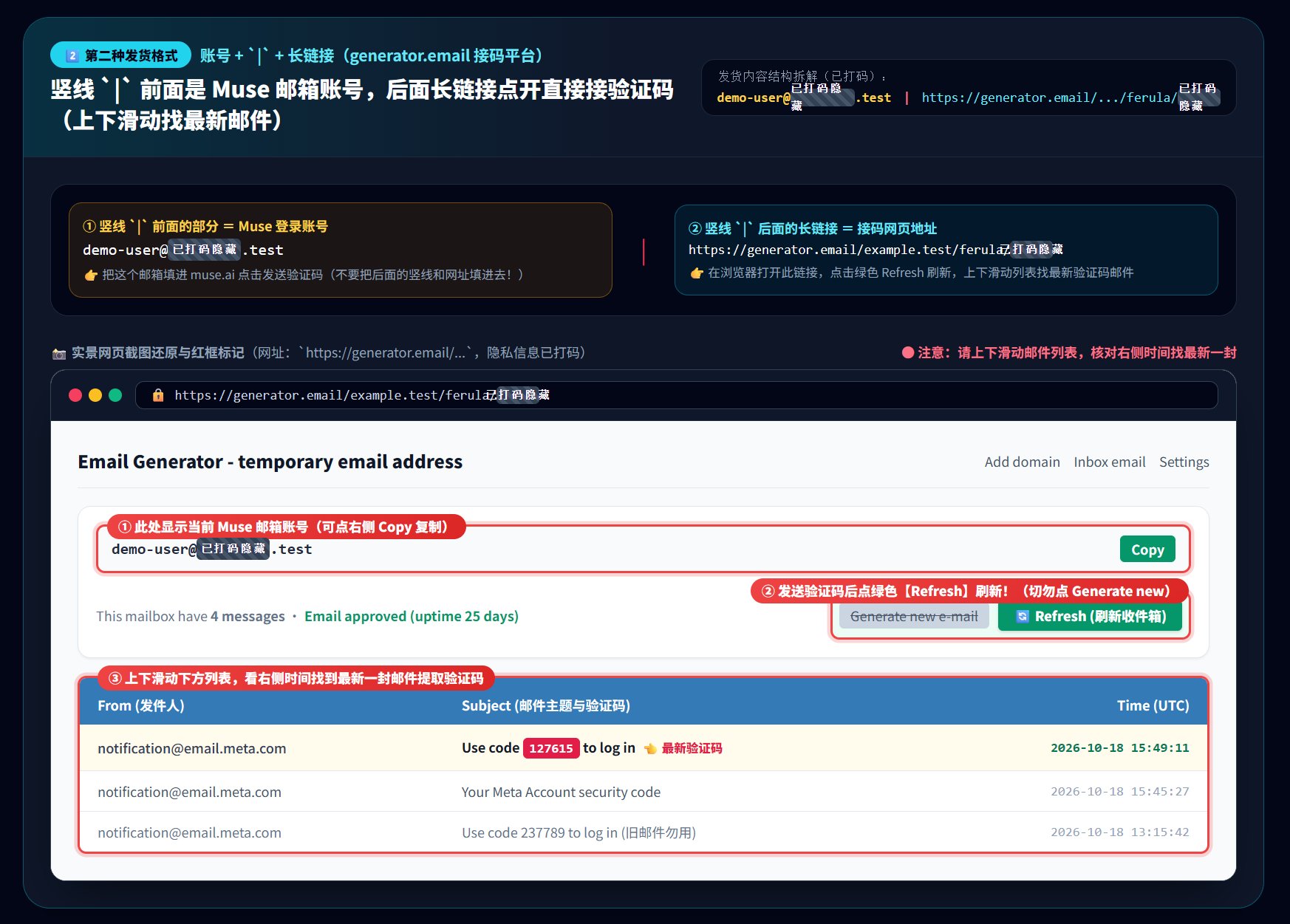
Format 2: account + | + long link
The email before the vertical bar is your Muse login. The https link after it is the inbox page for the code. Open it, click Refresh, then scroll up and down to find the newest message.
Format 3: Muse account + email password
This format includes the Muse login email and the password for that mailbox. Some orders also include the tmail.pk inbox link. Request the code from muse.ai first, then collect it using one of the two methods below.

Step 3: Collect the verification code
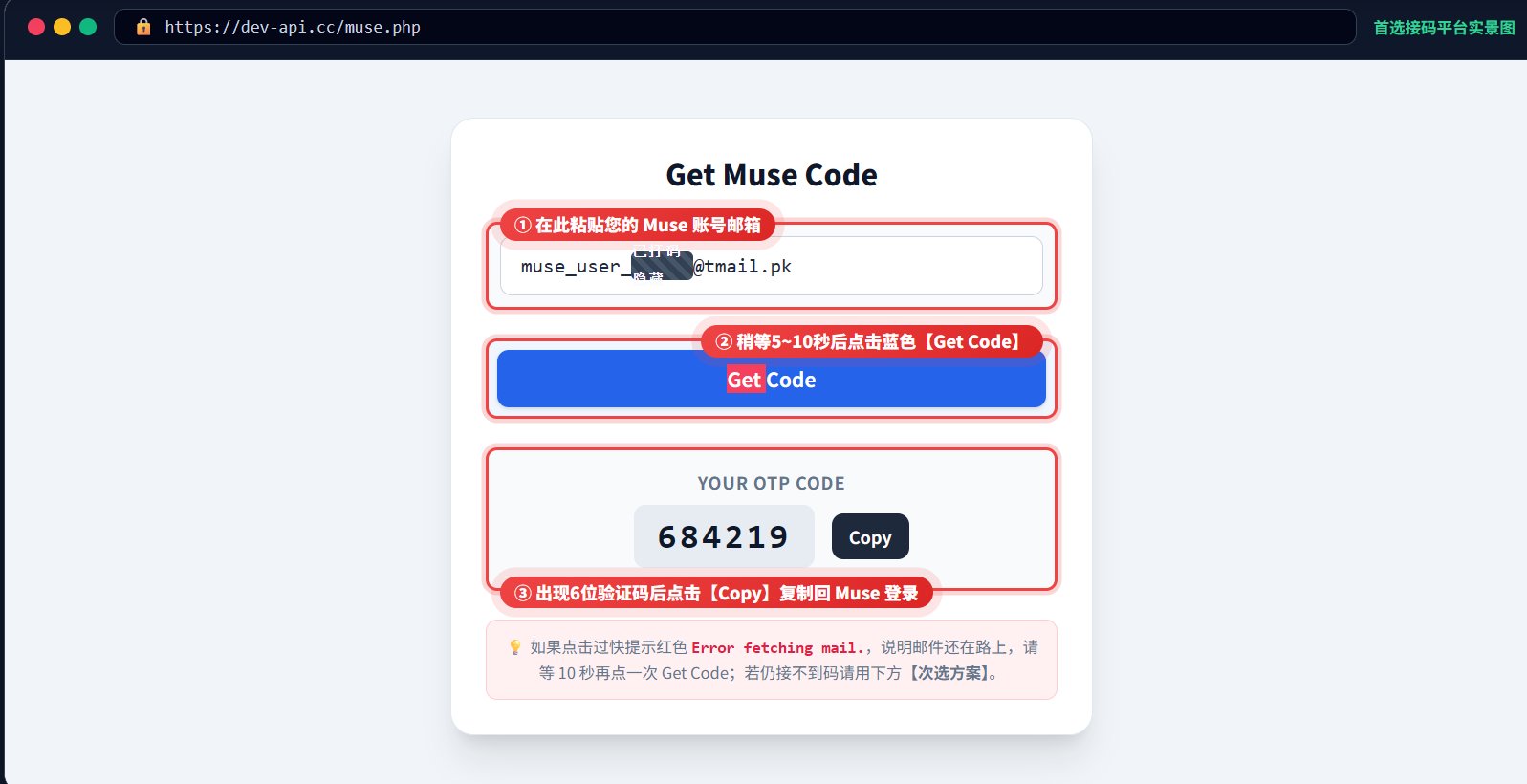
First choice: the one-click API page
Open dev-api.cc/muse.php and follow the prompt on that page. It shows the latest code in one click, which is the fastest option.
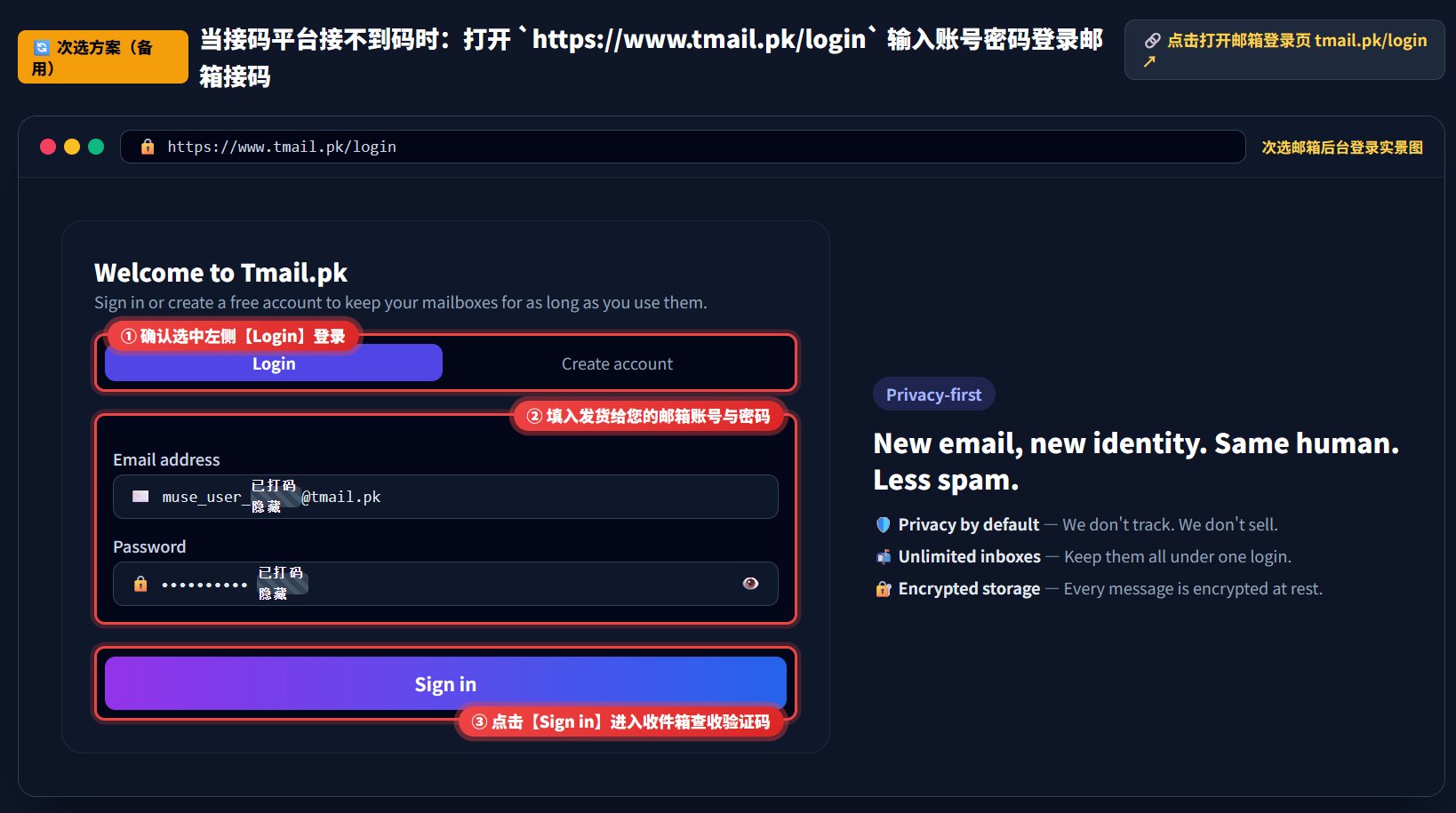
Backup: check the Tmail inbox manually
If the API page is temporarily unavailable, sign in at tmail.pk with the mailbox address and password from your delivery message, then read the Muse code from the inbox.
Next step: switch to your own email
First inspect the delivery as instructed in your order, confirm the account status and your permission to manage the account and change its details. Only when an email change is explicitly permitted should you switch to an email address you control long term and can use to receive verification codes. You do not need to change it immediately after your first login, and you should not change several details at once. Report any problem promptly as required by your order. See the Muse login email change guide; once you have confirmed that you may proceed, follow this order:
- Open Contact info in the Meta accounts center at accountscenter.meta.com;
- Add your own email and verify it;
- Set the new address as the default contact;
- Only then delete the old address to finish the switch.
Unsure about the delivery format? Use a redacted example
Compare the three formats above first. If you ask a chat tool for help, describe only the structure and replace the real email, password and entire code-retrieval link with placeholders. A link’s path or query can contain access credentials, so hiding only the email is not enough. Never paste full delivery credentials, passwords, verification codes or inbox access tokens into a chat tool. If the format is still unclear, contact this store’s support with your order number.
Please identify the delivery format in this redacted example:
[email] | https://example.com/[inbox-credential-removed]. Explain only what each part is for; no real account or password is needed.
Common questions
- The code never arrives. Check the login email, the matching inbox method and spam folder. Wait as instructed on the page before refreshing, and check your network and access eligibility. If it still fails, record the error and contact this store’s support with your order number; do not request codes repeatedly.
- Muse shows “Join the waitlist” or “This region isn’t supported yet”. Follow Muse’s official regional and account access requirements. This message alone cannot rule out account eligibility or establish an IP risk-control issue. Changing IP does not guarantee access.
- Muse shows “Muse has been unlinked” after login. Follow the Muse unlinked account appeal guide, use an email where you can receive replies, and provide truthful information as requested. Review time and recovery depend on the official response.
- Can I sign in with the email used for the order? For the first login, use the login address specified in your delivery instructions; do not confuse it with the email used to receive the order. If you need to change it, first check the delivery and confirm that you may change the account details, then follow the applicable security instructions one step at a time.
Related product and follow-up
This guide matches Muse ready-to-use account (1 billion tokens). Always follow the delivery notes on your own order. If your delivery message or code method differs from what is described here, contact support with your order number before trying anything else.
Editorial note: written by the Maihao AI editorial team from the common Muse delivery formats and the official login flow. Muse pages and the code pages may change, so follow what you see on screen. All screenshots are illustrative.
For product context, features and access requirements, read our Muse introduction and beginner guide.
An invite code serves a different purpose from an email sign-in code. For obtaining, redeeming or sharing one, see the Muse invite-code and troubleshooting guide.