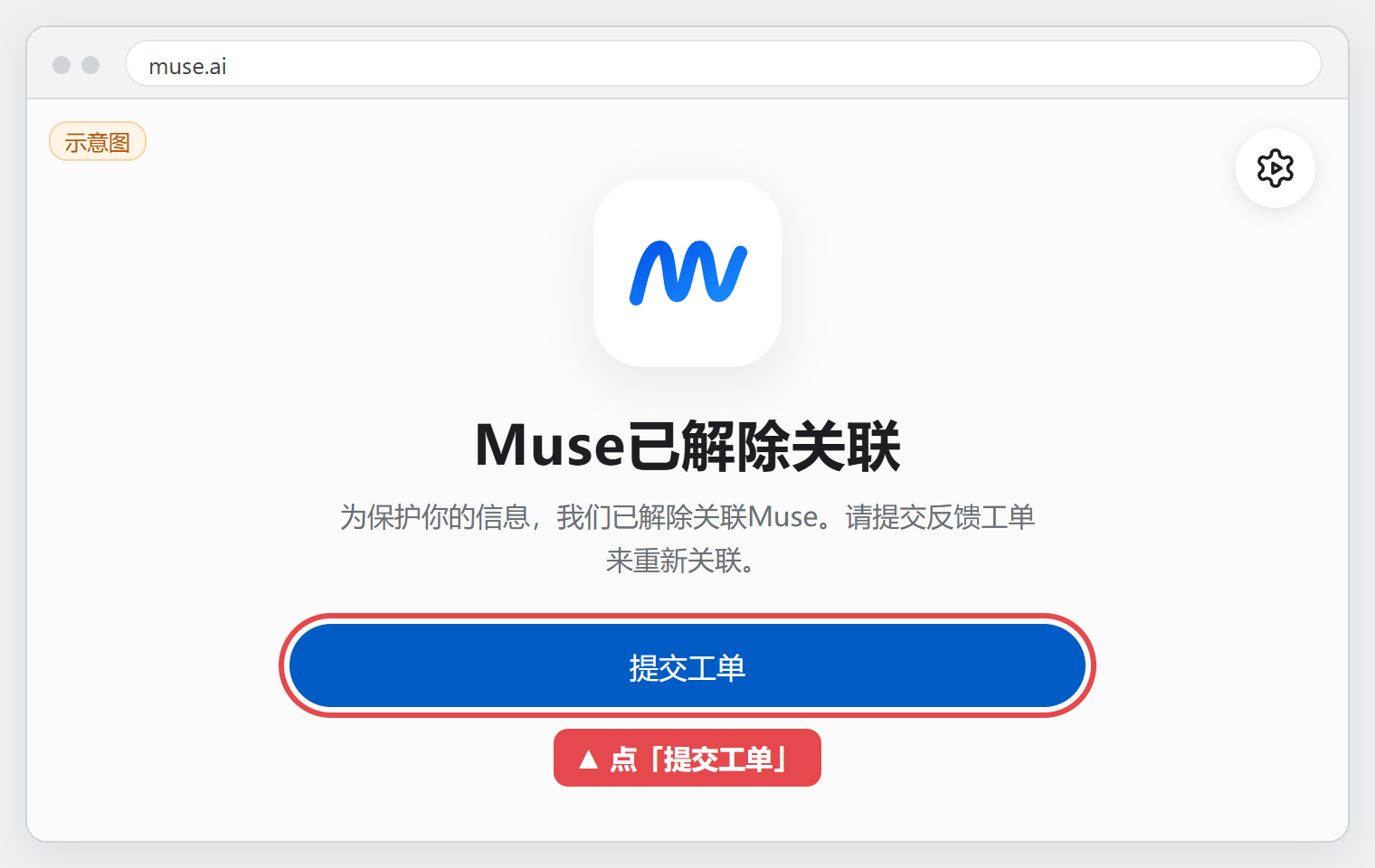
Muse says it has been unlinked? Save the message, open the support-ticket option on that screen, enter an email you can receive replies at, and describe the account, timing and preceding actions. If submission returns 403, check whether the official app offers “Report a problem.” Recovery, verification requirements and timing depend on the support response.
An unlinked Muse message is different from changing a login email. The message alone does not establish a ban or a service-wide risk-control event. Follow the steps for the prompt you actually see; the illustrations help locate controls, whose labels can vary by version, language and account state.
Muse unlinked: six steps to take first
- Save the details: the exact message, date, time zone, device, version and last action. Hide personal information in screenshots.
- Open a ticket: select the support-ticket button on the unlinked screen.
- Choose a reply email: use an inbox you control and can check, including spam. Do not enter an inaccessible old inbox as your contact address.
- Select a topic: choose Account access and sign-in if offered; otherwise choose the closest account-access or login category.
- Describe what happened: write in English, give the preceding actions and your actual relationship to the account. Mention important stored data only if true, and offer to complete official verification.
- Keep the receipt: save the ticket number or confirmation and follow up in that case. A 403 error or missing confirmation is not proof of submission.
Where is Muse available? Will a US or Japan IP fix it?
As of October 27, 2026, Meta’s launch announcements identify the United States, Canada, Mexico and Japan. See the Meta Connect announcement and the Japan launch announcement. Current Muse availability and account-eligibility requirements still apply.
This does not mean Muse is available only in the US and Japan, or that an IP address from either country restores an unlinked account. If you see an unsupported-region message, check the official conditions for your location and account. Avoid repeatedly changing countries, devices or sign-in methods. An individual unlinking message does not establish a service-wide incident.
Submit a Muse appeal: entry point, email and topic
Use the support-ticket option if it appears on the unlinked screen. Otherwise check the official client’s help or problem-reporting menu. Do not share passwords or verification codes with third parties offering account recovery.
Which email should you enter?
- Contact email: an inbox you can continue to access, used for support replies.
- Account or linked email: identifies the account or receives sign-in codes. If the form asks for this separately, follow that field’s instructions rather than substituting the contact email.
- Lost access to the old inbox: explain this accurately and state which verification you can complete. Changing the reply email does not itself remove an account restriction.
No unverified “Muse unblocking email” is listed here. Store support handles purchases and delivery; Muse’s official support process handles account-access reviews.
If available, select Account access and sign-in under Topic. If the labels differ, choose the closest account-access or sign-in option and explain the issue clearly.
English appeal template you can fill in
Replace the bracketed fields and remove anything that does not apply. You can translate a factual draft into English, using redacted descriptions. Never paste full passwords, verification codes or recovery credentials into a translation or chat tool. Do not claim to be the original registrant unless that is true.
Subject: Muse unlinked — request for account access review

Hello Muse Support,
I am requesting a review of access to the Muse account [account email or identifier, if requested by this official form].
The exact message is: "[copy the message shown on screen]".
This started on [date, time and time zone], on [device and app/browser version].
Before it happened, I [describe the actual steps or changes].
My relationship to this account is [describe truthfully].
I can receive replies at [reachable contact email].
[Only if true: The account contains important data, including a brief, non-sensitive description.]
Please let me know what verification or next steps are required. I am willing to complete verification through your official process.
Thank you.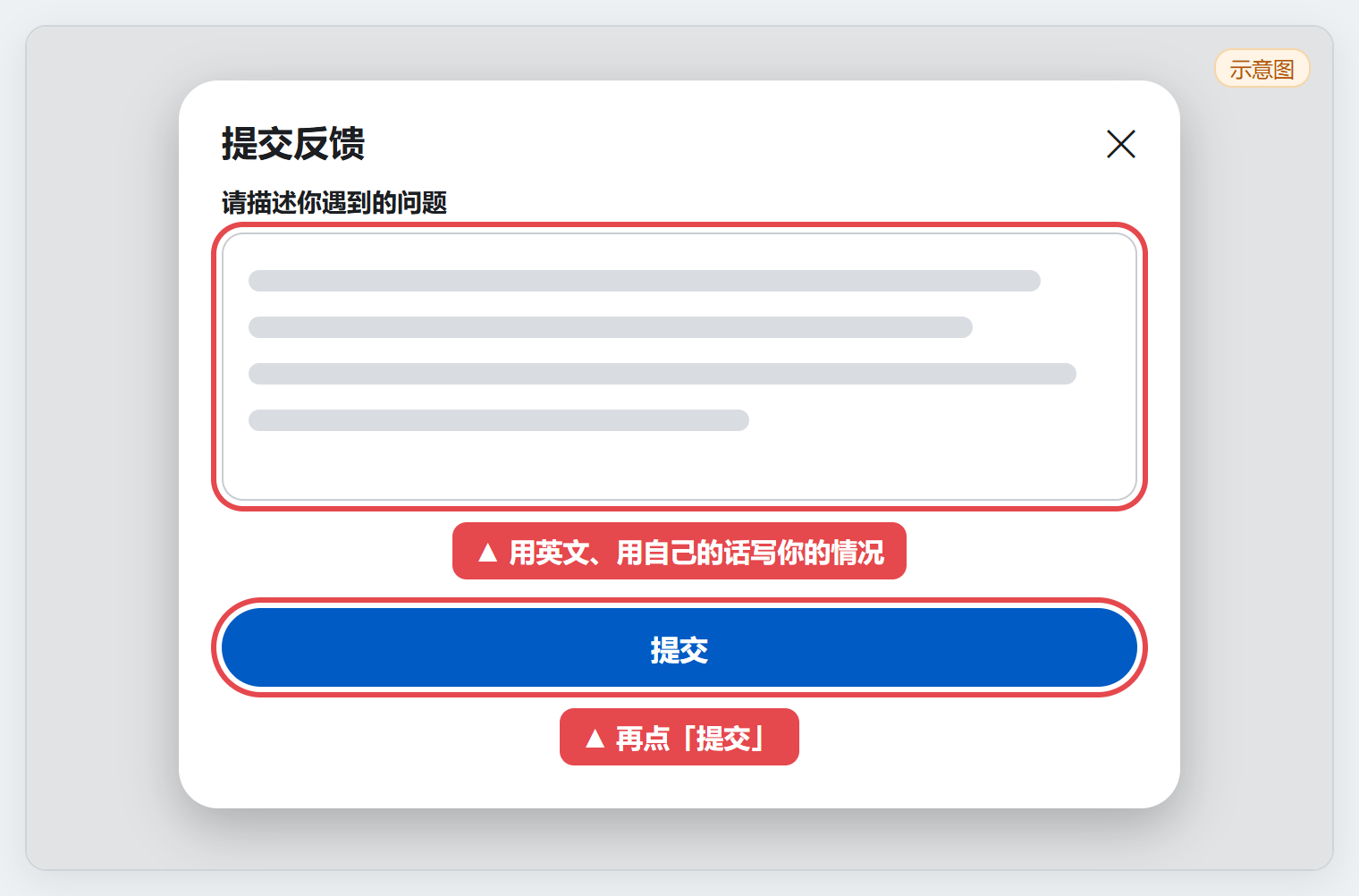
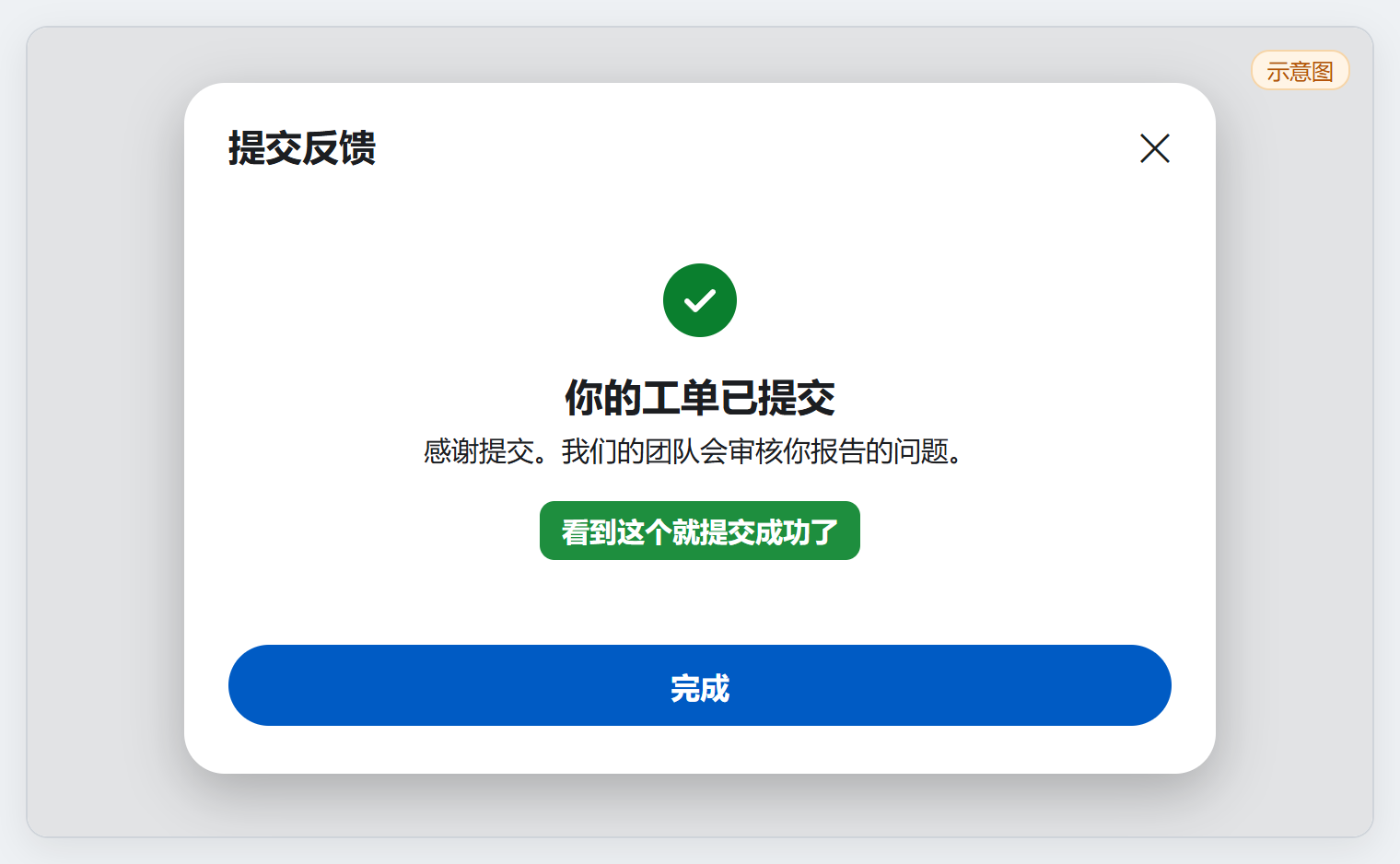
Confirm submission and keep the case number
Look for a submitted confirmation or ticket number before closing the page. Check your contact inbox and spam folder, and add information to the same case. Without a receipt, first check whether submission actually succeeded.
Muse support ticket returns 403: what to try
403 means the request was refused; it does not by itself prove the account is banned. Save the error, time and steps. Avoid repeatedly pressing Submit, then try the following:
- Confirm you are on the official page, check your sign-in state, connection and client version, and reopen the form once. If an extension blocks scripts, investigate in a trusted browser environment.
- If the web form is still refused, check the official Muse app’s help menu for Report a problem. Only if your current client supports shake-to-report, you can try shaking the device to open that option. Otherwise use the help controls actually shown.
- Report that ticket submission returns 403, with the time and a screenshot. Keep any report number, Bug ID or ticket number.
An in-app bug report can report a broken form. It does not establish that an account appeal was accepted or guarantee relinking. Repeated country-IP changes and duplicate tickets are not a recovery procedure.
Review Meta sign-ins and remove unfamiliar sessions
If settings remain accessible, review account security. Removing suspicious sessions is a security measure, not a promised requirement for relinking Muse. You do not need to sign out every other device for an appeal. First make sure you can receive sign-in verification so you do not lose your only usable session.
In the interface shown, open the top-right gear → Settings / General → Meta account. Follow the controls actually available if your version differs.
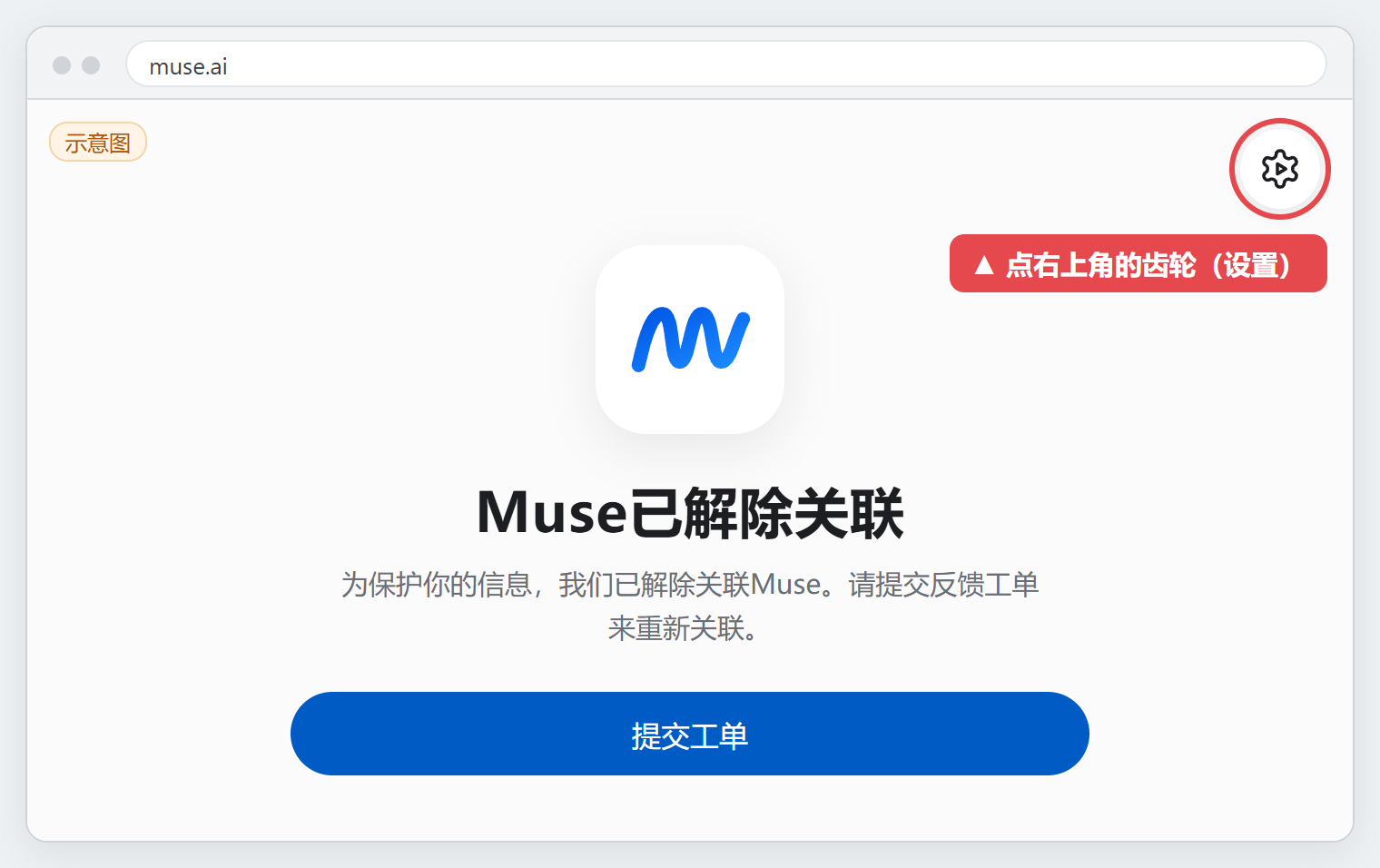
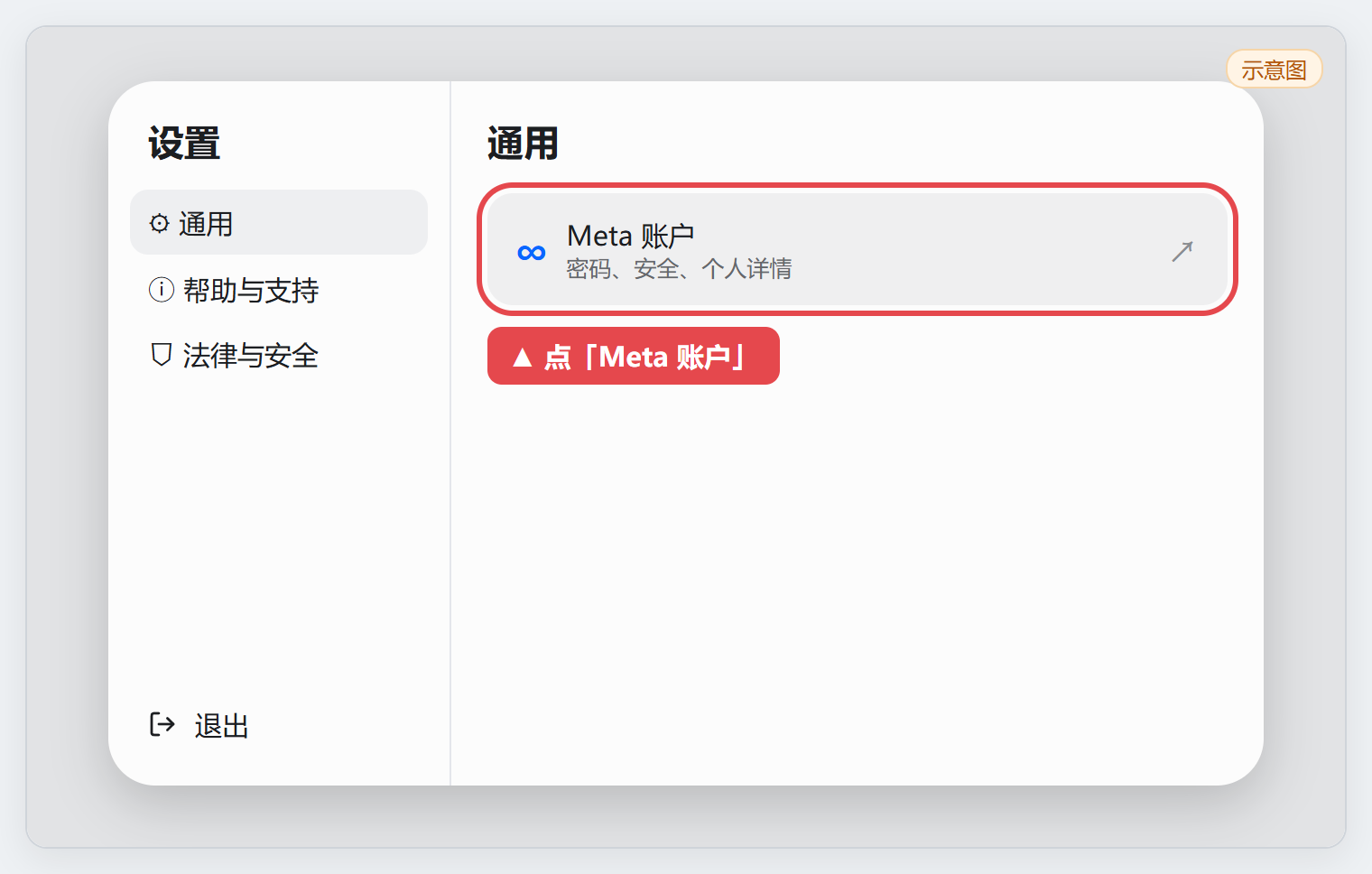
Find security settings and “Where you’re logged in”
Open the Meta account’s sign-in/security settings and Where you're logged in. Select the relevant account and review devices and recent activity.
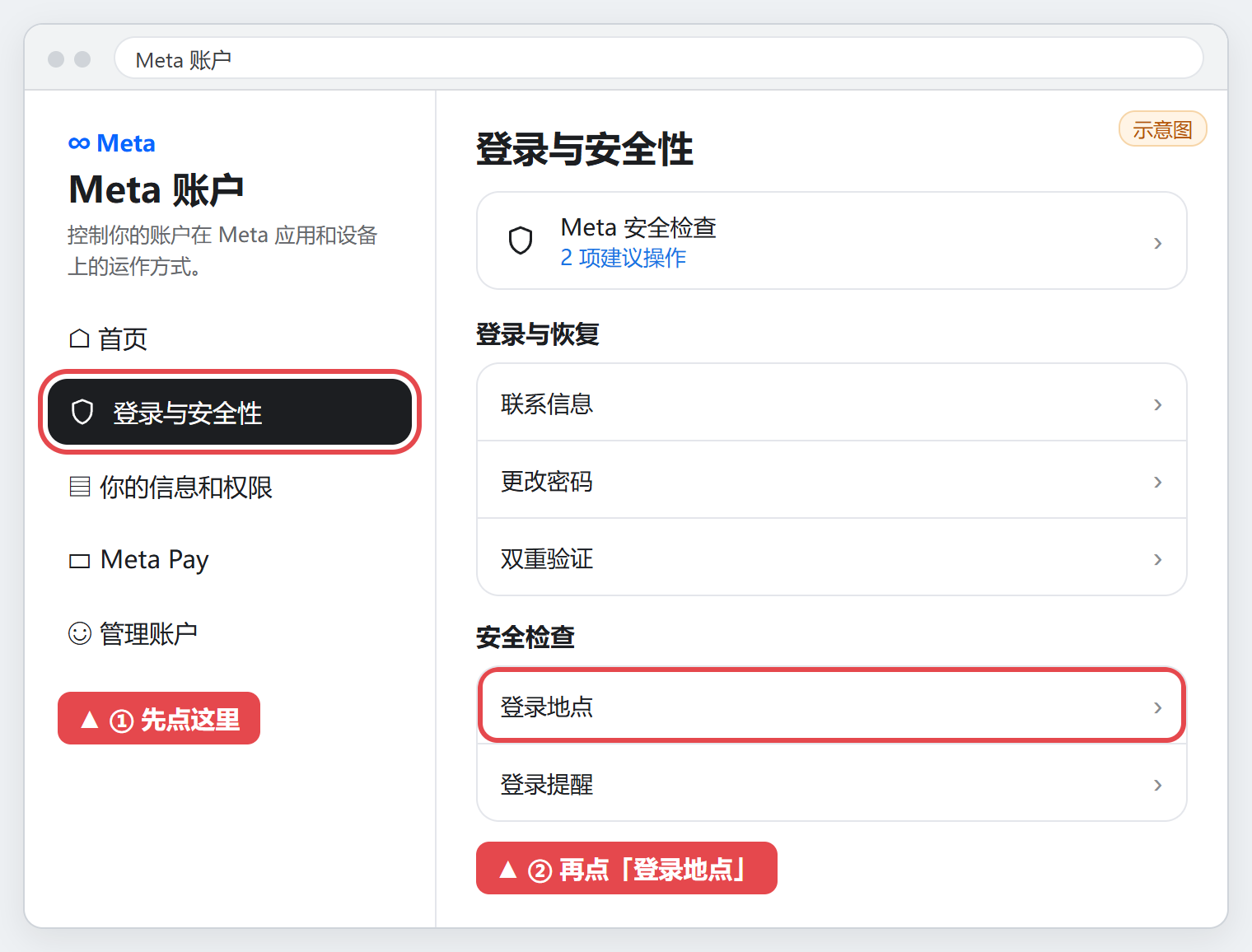
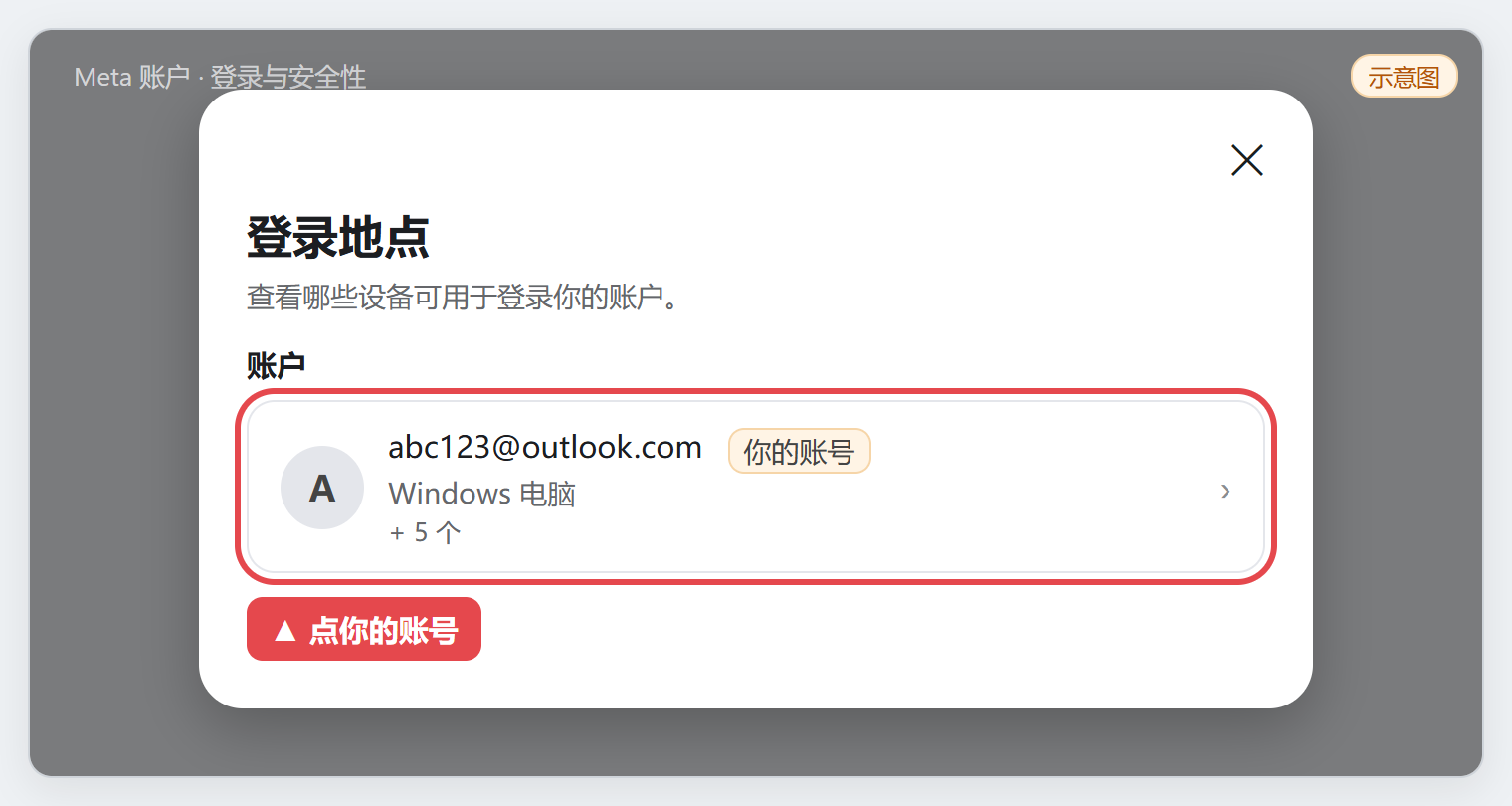
Select only unfamiliar or unused devices
Identify the current “This device” session. Keep devices you still use and control; sign out only unfamiliar or retired sessions. If you find suspicious activity, follow the official security guidance to change the password and review verification methods.
How long does recovery take? What if a selfie is requested?
There is no guaranteed one-to-two-day recovery window. A confirmation only shows that the request was sent. Review time and the decision depend on official support. Complete the requested steps; if the wait exceeds the timeframe given in your case, follow up there with your current status instead of opening identical requests.
If the official process requests a photo, first confirm that it is a Muse/Meta verification step on the official site or app. Submit a genuine photo of yourself as instructed. Do not use someone else’s image or fabricated verification material, and do not send sensitive documents to unofficial recovery agents.
Muse unlinked FAQ
Does “unlinked” mean the login email was removed?
Not necessarily. Check the complete message and whether account contact details changed. An unlinked Muse access message calls for an account-access review; changing a login email is a separate action. For missing sign-in codes, see the Muse login and verification-code guide.
What if there is no reply or access is still unavailable?
Check the contact email’s spelling, spam folder and submission receipt, then follow up in the existing case. Explain any loss of access to the linked inbox. Do not give a third party passwords or codes to “unblock” the account.
Should I submit repeatedly or switch IP addresses?
Keep one traceable case and provide the information support requests. Regional eligibility and account review are separate issues; a US or Japanese IP address does not establish eligibility or restore an account.
For product features and access conditions, read What is Muse?