To sign up for Meta Muse, start at muse.ai and sign in with your own Meta account or follow the account-creation flow using an email address, phone number or another option offered on screen. Then complete any eligibility and verification steps. An email code or a waitlist confirmation does not, by itself, establish that you can use Muse.
This guide covers Meta's personal AI agent, Muse. Muse Spark and Muse Wonder are model names, not additional consumer accounts you must create. For the broader product, see what Meta Muse can do; for the model family, see Muse models explained.
Check access before starting a new account
Use a sign-in method you control and can continue to access. Meta's getting-started guide says you can use a Meta Account. If you need a new one, supported routes include an existing Facebook or Instagram account, an email address or a phone number.
| Check | What to prepare | What it establishes |
|---|---|---|
| Account access | Your own Meta account, or an email address/phone number you can verify | You can complete and maintain your own sign-in |
| Age and eligibility | Check the current terms and prompts; Meta's product page describes the service as 18+ | A store age rating alone does not establish account eligibility |
| Service availability | Check the official rollout information and your account's on-screen response | Loading the site does not prove the service is available to you |
You can begin on the web without a terminal command or an additional AI platform. If you prefer an app, use the official entry points in our Muse download guide.
Where is Muse available?
Early guides that say “US and Canada only” do not reflect every subsequent launch. Official announcements have confirmed these markets:
| Market | Official confirmation |
|---|---|
| United States | Muse's September 2026 launch announcement introduced availability in the US |
| Canada | Meta's small-business announcement describes Muse as available in the US and Canada |
| Japan | Meta announced the Japan launch for October 23, 2026 |
| Singapore | Meta announced availability in Singapore on October 27, 2026 |
These are officially confirmed examples, not an exhaustive or permanent country list. Meta's Help Center says the app and website are not available everywhere, and individual features can vary by area. Check the current information and your own eligibility prompt rather than assuming that a store listing, a language setting or a working homepage grants access.
How to approach sign-up from an unsupported region
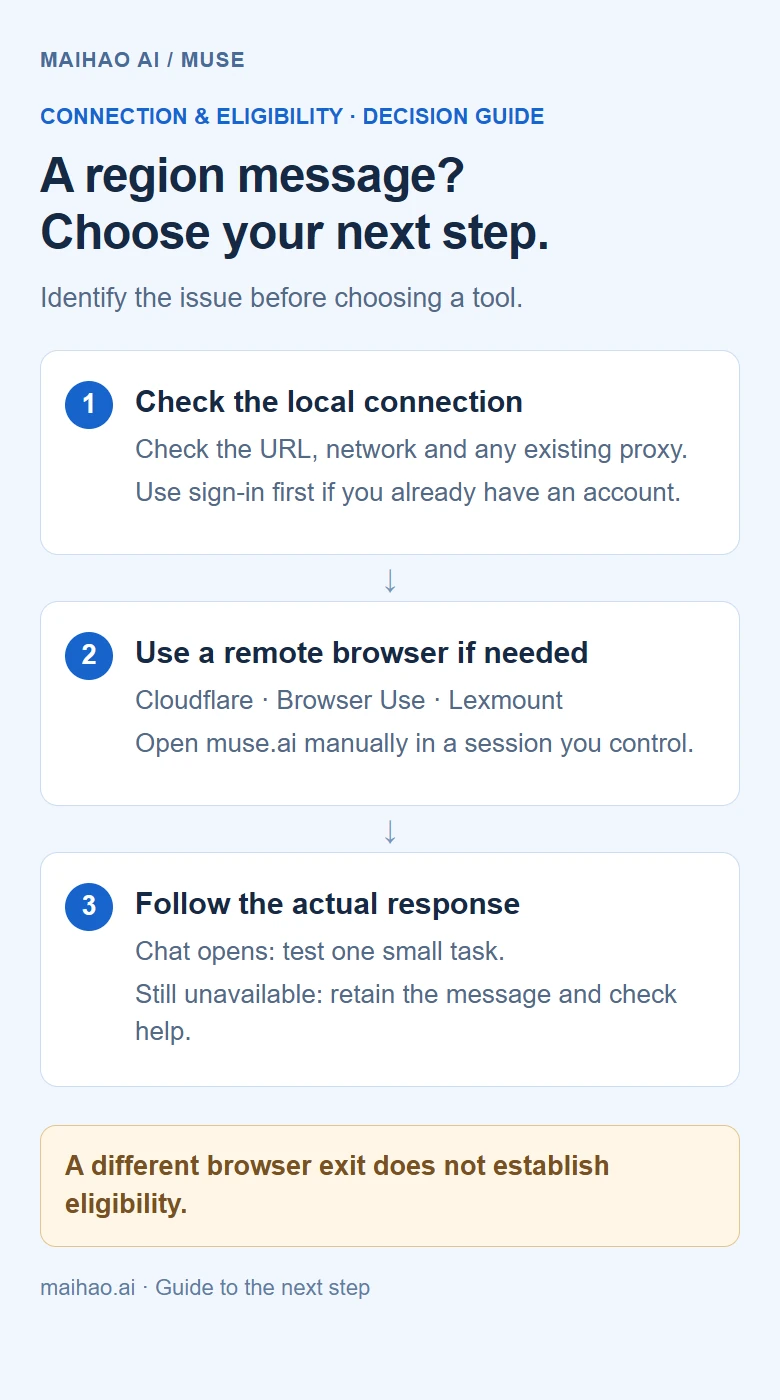
Separate a connection problem from an eligibility response. A page that will not load needs connection troubleshooting. An explicit “not available in your country or region” message means the current flow has not granted access. The options below help you inspect the browsing environment; reaching a sign-up form does not establish eligibility.
Choose a browsing environment you control
- Start with your own browser if you already have a stable connection. If you use a VPN or proxy, check the selected exit and whether your browser actually uses it. Keep the same environment across Muse, Meta sign-in and verification. If you are in a supported market but a proxy causes an unexpected response, retry on your local connection with the unnecessary proxy disabled. A server labelled “US” is not a success guarantee.
- Use a cloud browser when you need remote, manual control. Browser Use, Lexmount and Cloudflare Browser Run provide remote browser infrastructure. Compare exit selection, human control, session persistence and billing. These tools are separate services, not Meta-authorized account-registration services.
- Act on the final eligibility response. If Muse still says access is unavailable after you check your environment, retain that message. Use a waitlist option if one is offered, or follow official help and rollout updates. No official guarantee was found that changing IPs, buying an account or using an invite code grants eligibility.
Which tools do other sign-up guides use?
- Cloudflare Browser Run suits readers who want to control a remote browser manually. Its official Live View feature supports human interaction; the dashboard route is below. Cloudflare describes a global network, so do not assume the session is a fixed US exit or a US residential IP.
- Browser Use Cloud suits readers who need configurable proxy routing. Its official browser quickstart shows how to create a cloud browser, including
proxyCountryCode: "us". That configures the browser's proxy; it does not change your actual details or establish Muse eligibility. Check your own dashboard and charges first. If a dashboard action from an old guide is missing, follow the current API instructions rather than guessing at buttons. - Lexmount Browser is an option if you already use that platform. Its official product page confirms cloud browsing and web-interaction capabilities. Check whether your account currently supports manual control, the needed exit and session persistence. Do not rely on old promotional membership or free-time claims.
Choose one tool you already have before paying for additional services. Residential proxies, a brand-new email address and a particular bank's card are not verified universal requirements.
Remote-browser walkthrough: Cloudflare Browser Run
You need your own Cloudflare account with access to Browser Run, previously called Browser Rendering. Use the dashboard's product search to find Browser Run. This manual route does not require deploying a Worker or running an installation command.
- Check the allowance first. The current official pricing page lists 10 browser minutes per day and up to three concurrent browsers for Workers Free. Browser time is shared across methods. This is a tool allowance, not a promise of successful registration within 10 minutes. Have your own inbox ready before opening a session.
- Find a browser session. In Browser Run, open
Live Sessionsand create or select a session belonging to you. Set the timeout using the options currently offered. If the session disconnects while you retrieve information, distinguish that timeout from a Muse account problem. - Open the remote view. Expand the session's tabs and choose
Opento enter Live View, as described in Cloudflare's official instructions. Treat a signed Live View URL as a credential: do not publish the full link or a screenshot containing it. - Open Muse inside the remote browser. Enter
https://muse.ai/in that view's address or navigation control. Follow the official account flow below with your own email, verification code and accurate details. You may read the code locally, but reopening the sign-up page in a local browser changes the browsing environment. Personally review and complete any identity or payment verification. - Verify the outcome and end the session. If chat opens, run the small test task below. For an unavailable-region, waitlist or verification message, follow the matching branch instead. End the browser session from the tool's dashboard and confirm it is no longer active so it does not keep consuming allowance.
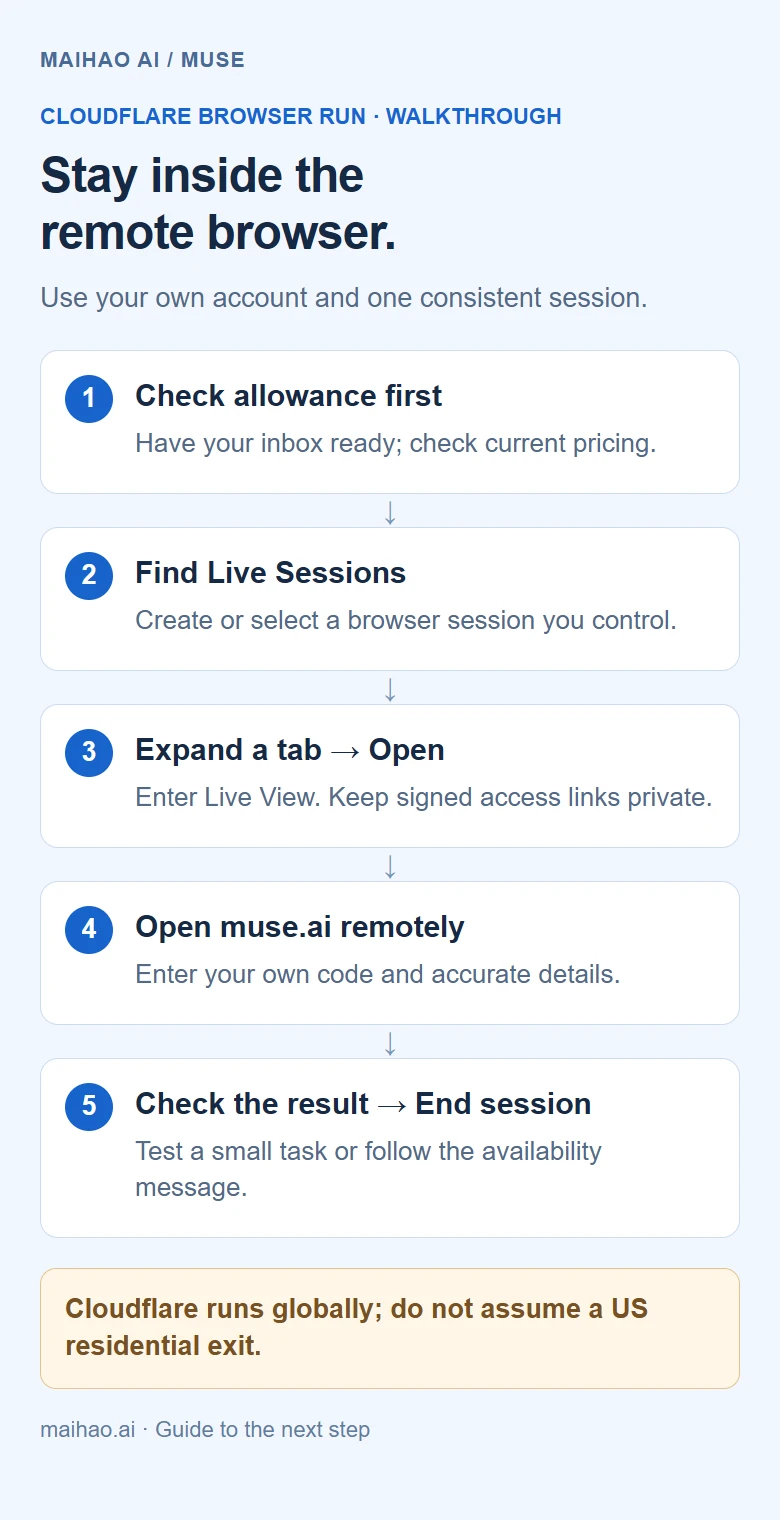
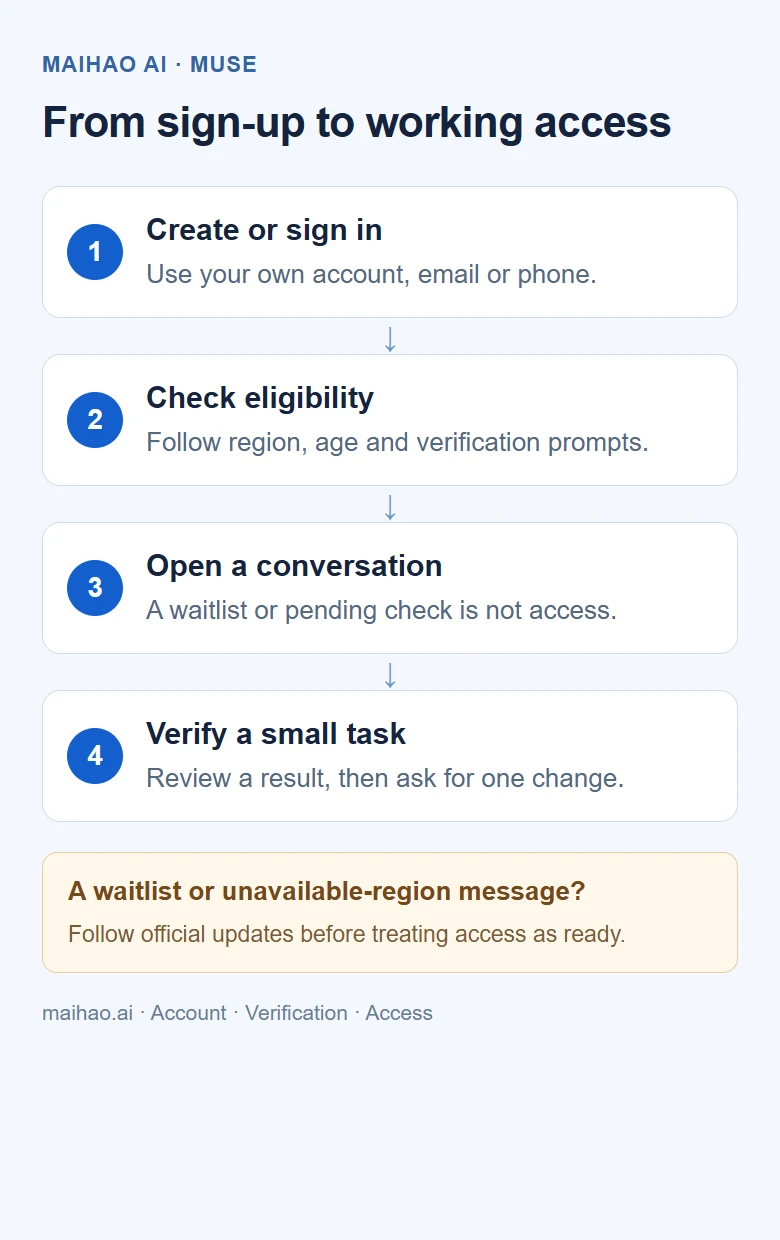
The diagram shows the workflow; it is not a signed-in dashboard screenshot or proof of successful Muse registration. No reader account was registered for this guide. Dashboard entry points follow the current official documentation, while Muse's later checks depend on the prompts shown to your own account.
Sign up through the official flow
1. Open the correct site
Enter https://muse.ai/ in your browser. The public page offers “Log in or create an account” with a mobile-number-or-email field. If you already have an account, use the sign-in route offered there.
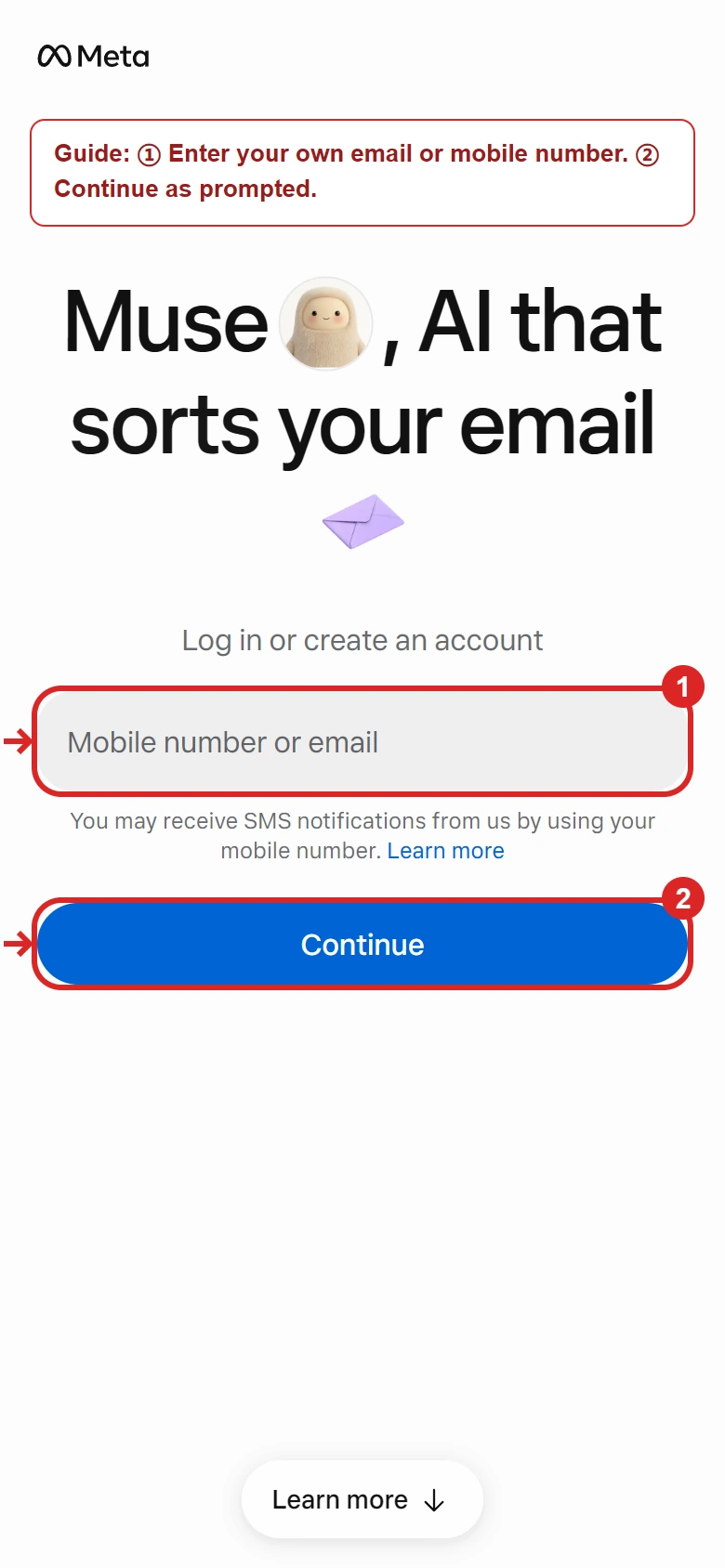
The red outlines and short labels are editorial annotations. The original controls and Meta attribution remain visible. If the site does not load, address the browser or connection error first; an unrelated product with “Muse” in its name is not an alternative sign-up page for this service.
2. Choose an account route you can verify
Use your existing Meta account or follow the new-account option shown. For email, check the full address before continuing. For a phone number, confirm the country code and number. The available Facebook, Instagram, email or phone options may appear on different screens, so the flow need not match an older screenshot exactly.
The expected result is the appropriate sign-in or verification step. If your details belong to an existing account, follow the login or recovery prompt instead of assuming you must create another one.
3. Complete the checks actually requested
If asked for an email or SMS code, retrieve it from your own inbox or phone and use a currently valid code. Provide accurate details and complete any age or eligibility checks displayed by the service.
If a payment-card, identity or other verification method appears, read that screen's purpose, provider and any charge or temporary-authorization terms before proceeding. A single user's successful card verification does not establish a universal card requirement, a fixed charge or a fixed release period. If none of the offered methods works for you, keep the exact message and use official support.
After this step, you should either be able to proceed into Muse or see a clear message explaining an access limitation, pending verification or a wait for notification. Treat those as different outcomes.
4. Confirm access with a small task
Open the conversation interface and submit a simple request. If you are still on a country-availability, waitlist or verification screen, account access has not passed this check. Reinstalling an app does not establish eligibility.
Troubleshoot the message, not a guessed cause
| What you see | What you can establish | Useful next step |
|---|---|---|
| No email code | Email verification is incomplete | Check the address, spam folder and inbox delivery; follow the resend timer and use the newest valid code |
| Missing SMS or an unsupported-number message | The number or verification step has not been accepted | Check the country code and exact error; use an offered method that you control |
| Country or region unavailable | This flow has not granted service access | Check the local or remote browsing environment above; if access remains unavailable, retain the message and follow official notifications or support |
| A waitlist confirmation | You have registered to wait, not necessarily to use the service | Keep access to the notification channel; the message does not prove an email address is permanently unusable |
| An age or identity check you cannot complete | The displayed check remains outstanding | Review the requirements, use accurate personal details and contact official support if needed |
| Chat opens but usage is exhausted | Access and remaining usage are separate | Check the usage and refresh information or optional subscription shown in your account |
For a support request, record the exact message, step, device, browser/app version and approximate time. Remove email addresses, phone numbers, codes and payment details from screenshots. If the specific message says the account is unlinked, use our Muse unlinked-account help.
A first-task check that does not need connected accounts
Try a request with a clear output and no email or payment permissions:
Create a three-day English speaking practice plan, 15 minutes per day. Use a table with the goal, exercise and completion check for each day. Do not access my email, send messages or make purchases.You should receive a readable plan that you can inspect and ask Muse to revise. This is a basic conversation-and-task check; it does not test Gmail, shopping or every other feature.
- Confirm that you can open a conversation and submit the request.
- Check the three-day duration, 15-minute sessions and requested table, then ask for one change.
- Check for an outstanding failure, pending task or usage-limit message rather than inferring completion from a partial response.
Connect other apps only as you need them, reviewing each permission request. Creating an account, connecting an inbox and allowing messages to be sent are separate decisions.
Frequently asked questions
Does a VPN, residential IP or cloud browser guarantee sign-up?
No. It can change a connection or browser exit, but it does not replace Muse's account, regional or age-eligibility checks. Confirm that your tool is actually active, then read Muse's response. If access remains unavailable, repeatedly changing emails, addresses or cards is not a verified fix.
Do I need Facebook or Instagram to create a Muse account?
No. Meta also documents account creation with an email address or phone number. Use the methods currently offered to you and keep control of the sign-in channel.
Is Muse sign-up paid, and is a bank card always required?
Meta documents free access with a usage limit, with paid subscriptions for additional usage. Subscription payment, an eligibility check shown during onboarding and a shopping payment method are distinct steps. Do not assume a requirement on one screen applies to every new user.
Will an invite code remove a country restriction or a waitlist?
Do not rely on a referral code as an eligibility override. Establish account access first. If you can use Muse and want to review reward redemption, read our Muse invite-code guide and the terms shown in your account.
Does a waitlist message mean my email address is unusable?
It establishes a waiting state, not a published explanation of the service's internal checks. Follow the notification instructions; the message alone does not establish that an address is permanently blocked or when access will open.
Can I sign up from Windows?
You can open the official Muse website in a browser to follow the account flow. Final access still depends on eligibility and availability; a functioning webpage does not establish that every feature is enabled.
Does one successful reply verify every Muse feature?
No. It confirms that the tested conversation works. Connected apps, uploads, subscriptions and longer-running tasks have their own permissions, usage and completion states. Check each feature you intend to use.